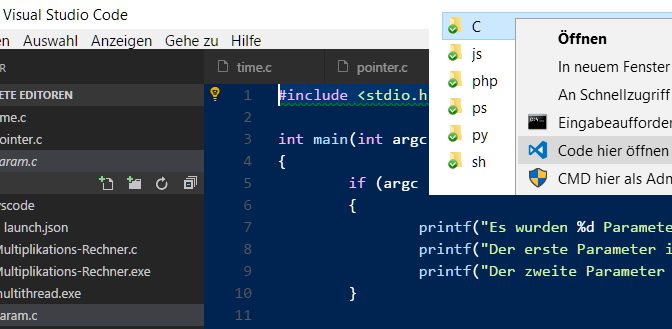
VS Code open project folder with right click from explorer context menu
If you develop with VS Code, a project folder is also used in here. VS Code stores the workspace settings in the settings.json file. The setting for the debugger in launch.json under the .vscode folder of the respective project folder.
Open VS Code project folder via explorer context menu
When VS Code is installed, the context menu is automatically expanded, allowing a file to be opened from the Explorer context menu in VS Code. Unfortunately, opening a directory from the context menu was lost. This post shows how to expand the context menu to open folders for VS Code.
VS Code reads the project settings by entering code .in the respective folder. The following registry key can be added. This makes it possible to open the selected project folder in VS Code via the explorer context menu.
Add VS Code context menu to registry
REG ADD HKCR\Directory\shell\Code /ve /t REG_SZ /d "Open" /f
REG ADD HKCR\Directory\shell\Code\command /ve /t REG_SZ /d "%localappdata%\Programs\Microsoft VS Code\Code.exe \"%V\"" /f
REG ADD HKCR\Directory\shell\Code /v Icon /t REG_SZ /d "%localappdata%\Programs\Microsoft VS Code\Code.exe" /f
Copy Paste the lines in a command prompt opened as administrator.
It may be that your system has’t VS Code installed under %localappdata%\Programs. Make sure you know which path code.exe is installed in and, if necessary, modify the path in the last two lines.
Initially, the previous VS Code versions were not installed from the Microsoft store, but were deployed in Program Files, then add this keys.
REG ADD HKCR\Directory\shell\Code /ve /t REG_SZ /d "Open" /f
REG ADD HKCR\Directory\shell\Code\command /ve /t REG_SZ /d "C:\Program Files\Microsoft VS Code\Code.exe \"%V\"" /f
REG ADD HKCR\Directory\shell\Code /v Icon /t REG_SZ /d "C:\Program Files\Microsoft VS Code\Code.exe" /f
Copy Paste the lines in a command prompt opened as administrator.
The new “Code” context menu is now registered.
Right-click above the selected folder, in the context menu click “Open” at the blue code symbol.
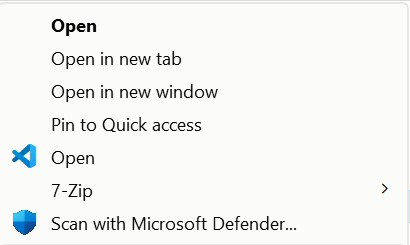
Note. In Windows 11, under “Show more options” you can find the context menu with the VS Code you just added.
Remarks
The Lightweight Editor VS Code is a cross-platform editor for developers that differs from integrated development environments (IDE). Like Sublime, Atome or Eclipse, Visual Studio Code still supports debugging and autocompletion with IntelliSense. However, it does not include integrated compilers and components such as version management, project management, or the ability to easily create graphical user interfaces (GUI).
However, Visual Studio Code makes it possible to adapt the development environment (IDE) to the required development workflow. With a variety of extensions, VS Code can be expanded in many ways, so additional features can be integrated from the marketplace, such as extensions for version control and debugger tools. The interpreters and compilers of the languages must be provided according to the platform and version.
 Incoming messages are rejected as bounces that send a different FQDN to EHLO.