Generate random password using 10 methods in Linux

Generate Random Password using Strong Password Generator

Generate random password using 5 methods in Linux

You can manually create some of the passwords you need. However, if you want to generate a secure password for multiple users or devices, then this is not an adequate approach.

There are many Linux utilities on the web that meet these requirements. In this tutorial I will introduce the 10 best password generators, which can be used in the Linux terminal.

The following combinations will help you generate a strong password. It should be at least 10-16 characters long, including alphabets (lowercase and uppercase), numbers, and special characters.

The 10 best strong password generators

pwgen generate strong passwords that are easy for people to remember and at the same time as secure as possible.
xkcdpass uses 12 dictionaries by Aspell, the GNU spell checker project.
openssl commonly used for the various cryptography operations of OpenSSL cryptography library.
gpg used the OpenPGP encryption and signing tool.
mkpasswd create new password, can optionally be applied to a user.
makepasswd create true randomized passwords using /dev/urandom, with the accent on security over pronounceability.
md5sum calculates and verifies 128-bit MD5 hashes.
sha256sum verify data integrity using the SHA-256.
sha1pass is known to create SHA1 hash.
/dev/urandom file use character special files /dev/random to provide an interface to the kernel random number generator.

Generate strong password using pwgen

The pwgen program generates passwords in a way that people can easily remember, while being as secure as possible. For most systems, pwgen needs to be installed first.

$ sudo apt install pwgen

To do so, simple run the pwgen command in the Linux terminal. It generates 160 secure passwords in a single shot. These 160 passwords are printed in 20 rows and 8 columns.

Generate strong 6 passwords with 16 characters length. Use -s option to generate completely random, hard-to-memorize words. Run the pwgen command as follows.

$ pwgen -s 16 4
0mvQIiWNoMLxbgVR rZ7REDOdjmvOr79D JOX9aPy7dYwRzISF yZBwXb5EwrcM4h3j

If you want to generate 10 random passwords with 16 characters length, including numbers, and special characters, use these pwgen command.

$ pwgen -cnys 16 12
:38M*BA-6y90WyOl U;2+rT/~3j3|}Y)I Zqr>I0p[Ls{IF?z5 c'Zy<%`BK/4>gJ~E
4s|,{h4hQuv@UGIy la!0mH;qSF1!>F|O v@l_8Uf3DH.\}fR L"(hvNI!aafXI0ru
4"Z`[qywLRLA17VC PC>y3[o0{)/i\bN{ iRF+85e<7'of14:p G.6aC:KLG/>49Smb

Create random password using xkcdpass

xkcdpass uses the dict2 and dict6 word list by default due to their unique properties. It has an option that could be used. It can be combined with the output of pwgen to get unique passwords too. You can also use the first letter of each word of the passphrase to create a password that is also easy to remember.

Commonly the xkcdpass program has to be installed first.

$ sudo apt install xkcdpass

If you hit and run xkcdpass then 6 passwords will be displayed.

$ xkcdpass
pellet lunchroom epidemic viable jawless jumbo

xkcdpass can even be used interactively, with the -i option it asks you how many words it should generate and whether it should continue generating with ask y/N and loop until one is accepted.

$ xkcdpass -i
Enter number of words (default 6): 12
Generated: employer celibacy hypertext liqueur bounce tightrope probiotic pencil provoke spotless jawless endnote
Accept? [yN] n
Generated: concrete edginess reanalyze hatred possibly tadpole reword fresh glory casually duckling overstuff
Accept? [yN] y
concrete edginess reanalyze hatred possibly tadpole reword fresh glory casually duckling overstuff

Create random password using OpenSSL

Using OpenSSL to create secure passwords, with run the following command to create a random password with 16 characters lenght.

$ openssl rand -base64 16
8buZwXt+OKjdN9MxxuRRTw==

If you would like to generate 10 random password with 16 characters length using openssl, then ran the openssl command in a for loop.

$ for pw in {1..10}; do openssl rand -base64 16; done

Create strong password using gpg

Run the gpg program with the following command to generate a random password with 16 characters length.

$ gpg --gen-random --armor 1 16
huH4efPrgPDTNAmQU8u1ng==

Generate random password using mkpasswd

mkpasswd generates passwords and can apply them automatically to users. It’s part of the whois package so you need to install first.

$ sudo apt install whois

With no arguments, mkpasswd returns a new password. Run the mkpasswd command with hit Enter as follows.

$ mkpasswd
Password:
bDu7vypaEAWxQ

Run the mkpasswd with the following command to generate a random password with 16 characters length.

$ mkpasswd 16
YjXEEmcQGfsh6

Generate random password using makepasswd

Commonly the makepasswd program has to be installed first.

$ sudo apt install makepasswd

Run makepasswd command in terminal to generate a random password.

$ makepasswd
mtrn2vCN

Run makepasswd with the following command to generate 10 random password with 16 characters length.

$ makepasswd --chars 16 --count 10
8FeKPTsPWWnMzwPd
IzJYdQ5ugp54QL2V
to4JD057ivK97ebw
X0i8jBiALTTqJQXy
dSPpu9sVRyxuW1gs
m6f4ppv4VmAJRDBr
N21WjEES1R3CpR4b
LV5IeQ2u9B4teSSY
bpJ2pAML4InuTLMC
W8rxuaatQxU0sB1h

Generate random password using md5sum

md5sum is a computer program that calculates and verifies 128-bit MD5 hashes.

$ date | md5sum
09f9d8063cd64c4f45156e1694e405e8  -

Create strong password using sha256sum

sha256sum is designed to verify data integrity using the SHA-256 (SHA-2 family with a digest length of 256 bits).

$ date | sha256sum
9c8389ce6b87c8e401953fae7dc3a82b70042f8900638cf2c87550a5f15eb3d5  -

Generate strong password using sha1pass

sha1pass creates a SHA1 password hash. Without use any option in the command line, a random vector will be generated.

$ sha1pass
$4$sP0lvTtx$vWtERzFUpybYaV3zFh+wmJDQPUs$

Using sha1pass with the password option, the passed word is emedded in the hash string.

$ sha1pass password ChangeMe
$4$ChangeMe$/TsBdl4r0CJkvisl2emiaRyzkVU$

Create random password using /dev/urandom

Using /dev/urandom, the special character files /dev/random and /dev/urandom provide an interface to the kernel random number generator. The file /dev/random has the major device number 1 and the minor device number 8. The file /dev/urandom has the major device number 1 and the minor device number 9.

$ cat /dev/urandom | tr -dc 'a-zA-Z0-9' | head -c 16
fuIA9aVtGhmlVs0R

quote using “head -c 16” to print the first 16 bytes.

phpMyAdmin Error PHP 7.2.5 is required [SOLVED]

If you install phpMyAdmin on your web server, or even after an OS upgrade, the error message “PHP 7.2.5+ is required” may appear when trying to open the phpMyAdmin in your browser.

PHP 7.2.5+ is required.

Currently installed version is: ' . PHP_VERSION . '
'); } // phpcs:disable PSR1.Files.SideEffects define('PHPMYADMIN', true); // phpcs:enable require_once ROOT_PATH . 'libraries/constants.php'; /** * Activate autoloader */ if (! @is_readable(AUTOLOAD_FILE)) { die( '

File ' . AUTOLOAD_FILE . ' missing or not readable.
' . '

Most likely you did not run Composer to ' . '' . 'install library files.
' ); } require AUTOLOAD_FILE; global $route, $containerBuilder, $request; Common::run(); $dispatcher = Routing::getDispatcher(); Routing::callControllerForRoute($request, $route, $dispatcher, $containerBuilder); 

  First of all, if you see this error message, it says that PHP is not installed on the web server, or the required PHP version is not the supported version.

phpMyAdmin Error PHP 7.2.5 is required Solved

Preface

In this tutorial the Apache 2 Web Server and PHP 8.2 with the required modules is used to install phpMyAdmin on Debian 12 (bookworm).

phpMyAdmin Requirements

For phpMyAdmin you need PHP 7.2.5 or newer to solve the error, I recommend PHP 8.2 with session support, the Standard PHP Library (SPL) extension, hash, ctype, and JSON support. You need GD2 support in PHP and the PHP zip extension. The mbstring extension (php8.2-mbstring) is strongly recommended for performance reasons, for operation phpMyAdmin on a Debian 12 (bookworm).

If you are deploying PHP to the Apache Web Server on a Debian or Debian-based distribution, the command line might look like this:

$ sudo apt install php8.2 php8.2-{cli,mysql,imap,intl,apcu,cgi,bz2,zip,mbstring,gd,curl,xml,common,opcache,imagick} -y

PHP Library libapache2

The PHP module in the appropriate version is particularly important for the Apache webserver using phpMyAdmin without errors.

$ sudo apt install libapache2-mod-php libapache2-mod-php8.2 -y

Enable the installed PHP module using the Apachea2enmodhelper.

$ sudo a2enmod php8.2

May you want to check the installed Apache 2 modules.

$ apt list libapache2-mod-php*
libapache2-mod-php8.2/stable,stable-security,now 8.2.7-1~deb12u1 amd64 [installed]
libapache2-mod-php/stable,now 2:8.2+93 all [installed]

The next command also provides detailed information about the installed Apache 2 modules.

$ apt info libapache2-mod-php*

May you need to disable an previous Apache 2 PHP module.

$ sudo a2dismod php7.1

Then you should check the enabled Apache 2 PHP module.

$ sudo a2query -m | grep php
php8.2 (enabled by maintainer script)

These steps will fix the PHP error “PHP 7.2.5+ is required” when trying to open the phpmyadmin page.

Check PHP version

You might want to check the PHP version and all available module information by creating a file info.php with insert the content bellow. To prevent any errors during phpMyAdmin installation.

$ echo '<?php phpinfo(); ?>' | sudo tee /var/www/html/info.php

quote this is the apache default directory path in this tee writes, maybe you have to put the info.php file in here! /usr/share/phpmyadmin

Open the website in your browserhttp://ip_of_your_server/info.php

Last but not least, do not forget to restart the Apache webserver.

$ sudo systemctl restart apache2

phpMyAdmin installation

Install phpMyAdmin on a Debian or Ubuntu system from repository.

$ sudo apt install phpmyadmin

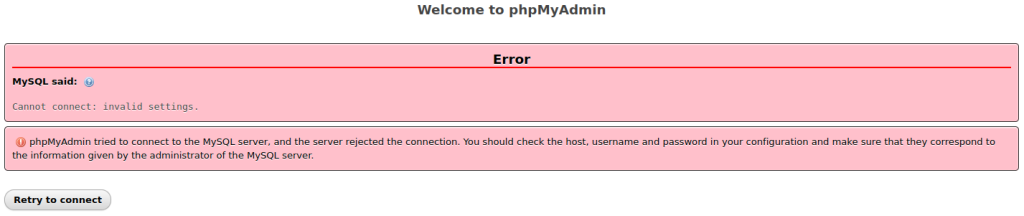
Then you may have already made some configurations, many of which can be found on the web. When you try to open phpMyAdmin you may get the following error message!

phpMyAdmin Error PHP MySQL said

phpMyAdmin PHP Error Solving

To prevent or fixing PHP error during install phpMyAdmin, you should check the following settings and change them if necessary.

Edit and check the phpMyAdmin settings in the config.inc.php file with the editor of your choice, such as nano or vi /usr/share/phpmyadmin/config.inc.php.

Generate the required random blowfish secret using for cookie auth and have it ready for pasting.

$ pwgen -s 32 1
zazoLupamNc5L3o2aE0ZHtkY7f4OqUts

You may still need to install the password generator utility!

$ sudo apt install pwgen -y

Then paste the random SECRET you just generated at $cfg['blowfish_secret' = 'SECRET'<-here and activate the next lines by commenting them out in /usr/share/phpmyadmin/config.inc.php.

<?php
/**
 * phpMyAdmin sample configuration, you can use it as base for
 * manual configuration. For easier setup you can use setup/
 *
 * All directives are explained in documentation in the doc/ folder
 * or at <https://docs.phpmyadmin.net/>.
 */

declare(strict_types=1);

/**
 * This is needed for cookie based authentication to encrypt the cookie.
 * Needs to be a 32-bytes long string of random bytes. See FAQ 2.10.
 */
$cfg['blowfish_secret'] = 'zazoLupamNc5L3o2aE0ZHtkY7f4OqUts'; /* YOU MUST FILL IN THIS FOR COOKIE AUTH! */

/**
 * Servers configuration
 */
$i = 0;

/**
 * First server
 */
$i++;
/* Authentication type */
$cfg['Servers'][$i]['auth_type'] = 'cookie';
/* Server parameters */
$cfg['Servers'][$i]['host'] = 'localhost';
$cfg['Servers'][$i]['compress'] = false;
$cfg['Servers'][$i]['AllowNoPassword'] = false;

/**
 * phpMyAdmin configuration storage settings.
 */

/* User used to manipulate with storage */
// $cfg['Servers'][$i]['controlhost'] = '';
// $cfg['Servers'][$i]['controlport'] = '';
// $cfg['Servers'][$i]['controluser'] = 'pma';
// $cfg['Servers'][$i]['controlpass'] = 'pmapass';

/* Storage database and tables */
$cfg['Servers'][$i]['pmadb'] = 'phpmyadmin';
$cfg['Servers'][$i]['bookmarktable'] = 'pma__bookmark';
$cfg['Servers'][$i]['relation'] = 'pma__relation';
$cfg['Servers'][$i]['table_info'] = 'pma__table_info';
$cfg['Servers'][$i]['table_coords'] = 'pma__table_coords';
$cfg['Servers'][$i]['pdf_pages'] = 'pma__pdf_pages';
$cfg['Servers'][$i]['column_info'] = 'pma__column_info';
$cfg['Servers'][$i]['history'] = 'pma__history';
$cfg['Servers'][$i]['table_uiprefs'] = 'pma__table_uiprefs';
$cfg['Servers'][$i]['tracking'] = 'pma__tracking';
$cfg['Servers'][$i]['userconfig'] = 'pma__userconfig';
$cfg['Servers'][$i]['recent'] = 'pma__recent';
$cfg['Servers'][$i]['favorite'] = 'pma__favorite';
$cfg['Servers'][$i]['users'] = 'pma__users';
$cfg['Servers'][$i]['usergroups'] = 'pma__usergroups';
$cfg['Servers'][$i]['navigationhiding'] = 'pma__navigationhiding';

Add the next line at the end of config.inc.php.

$cfg['TempDir'] = '/var/lib/phpmyadmin/tmp';

Save the config.inc.php file and exit editor.

phpMyAdmin database

Deploying the phpmyadmin database if not already done.

$ sudo mariadb -u root -p

Create the database “phpmyadmin” and grant “myadmin” with all rights.

CREATE DATABASE phpmyadmin;
GRANT SELECT, INSERT, UPDATE, DELETE ON phpmyadmin.* TO 'myadmin'@'localhost' IDENTIFIED BY 'ChangeMe';
GRANT ALL PRIVILEGES ON phpmyadmin.* TO 'myadmin'@'localhost' IDENTIFIED BY 'ChangeMe' WITH GRANT OPTION;
EXIT;

Add the SQL tables to the “phpmyadmin” database.

$ sudo mysql -u root phpmyadmin < /usr/share/phpmyadmin/sql/create_tables.sql

phpMyAdmin Apache configuration

/etc/apache2/conf-available/phpmyadmin.conf

The Apache site configuration for phpMyAdmin.

Alias /phpmyadmin /usr/share/phpmyadmin

<Directory /usr/share/phpmyadmin>
    Options SymLinksIfOwnerMatch
    DirectoryIndex index.php

    <IfModule mod_php5.c>
        <IfModule mod_mime.c>
            AddType application/x-httpd-php .php
        </IfModule>
        <FilesMatch ".+\.php$">
            SetHandler application/x-httpd-php
        </FilesMatch>

        php_value include_path .
        php_admin_value upload_tmp_dir /var/lib/phpmyadmin/tmp
        php_admin_value open_basedir /usr/share/phpmyadmin/:/etc/phpmyadmin/:/var/lib/phpmyadmin/:/usr/share/php/php-gettext/:/usr/share/php/php-php-gettext/:/usr/share/javascript/:/usr/share/php/tcpdf/:/usr/share/doc/phpmyadmin/:/usr/share/php/phpseclib/
        php_admin_value mbstring.func_overload 0
    </IfModule>
    <IfModule mod_php.c>
        <IfModule mod_mime.c>
            AddType application/x-httpd-php .php
        </IfModule>
        <FilesMatch ".+\.php$">
            SetHandler application/x-httpd-php
        </FilesMatch>

        php_value include_path .
        php_admin_value upload_tmp_dir /var/lib/phpmyadmin/tmp
        php_admin_value open_basedir /usr/share/phpmyadmin/:/etc/phpmyadmin/:/var/lib/phpmyadmin/:/usr/share/php/php-gettext/:/usr/share/php/php-php-gettext/:/usr/share/javascript/:/usr/share/php/tcpdf/:/usr/share/doc/phpmyadmin/:/usr/share/php/phpseclib/
        php_admin_value mbstring.func_overload 0
    </IfModule>

</Directory>

# Authorize for setup
<Directory /usr/share/phpmyadmin/setup>
    <IfModule mod_authz_core.c>
        <IfModule mod_authn_file.c>
            AuthType Basic
            AuthName "phpMyAdmin Setup"
            AuthUserFile /etc/phpmyadmin/htpasswd.setup
        </IfModule>
        Require valid-user
    </IfModule>
</Directory>

# Disallow web access to directories that don't need it
<Directory /usr/share/phpmyadmin/templates>
    Require all denied
</Directory>
<Directory /usr/share/phpmyadmin/libraries>
    Require all denied
</Directory>
<Directory /usr/share/phpmyadmin/setup/lib>
    Require all denied
</Directory>

Enable the phpmyadmin site using Apache helper command.

$ sudo a2ensite phpmyadmin

Finaly reload the Apache web server again.

$ sudo systemctl reload apache2

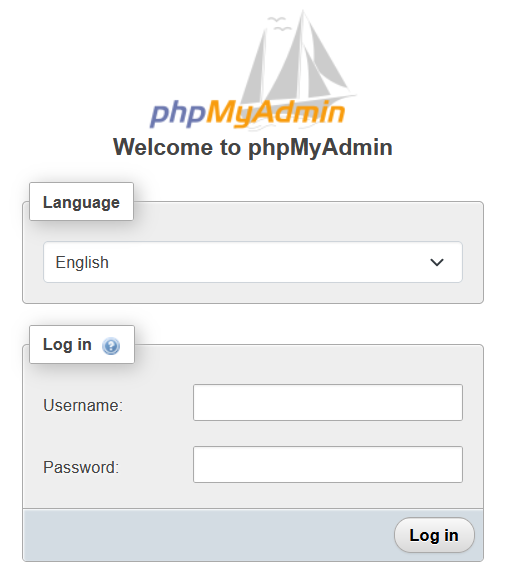
The phpMyAdmin site can now be opened http://ip_of_your_server/phpmyadmin/

phpMyAdmin Error PHP, Solved Welcome

Conclusion

In this tutorial you will learn how to install phpMyAdmin without errors, using the Apache 2 Web Server and PHP 8.2 with the required modules for phpMyAdmin on Debian 12 (bookworm). As assistance and troubleshooting to preventing or fixing issues with deploy phpMyAdmin in a Debian Linux. To avoid commonly known configuration errors that may occur during installation.