THINK UNBLOG Knowledge Network for Tutorials, Howto’s, Workaround, DevOps Code for Professionals. The posts are made on demand contributed by professionals
A new tool is designed to remove Copilot, Recall and other AI components from Windows 11, giving users more control.
Microsoft push the goal of developing Windows into an AI-powered operating system. This isn’t to everyone’s liking. This is precisely where the new tool RemovewindowsAI comes in. As the name suggests, the script is designed to remove almost all AI elements from Windows 11 upon request. This gives users the ability to decide for themselves which functions should remain part of the system.
According to the GitHub documentation, the AI-free Windows 11 project was created to provide a centralized solution for removing these increasingly intertwined functions. The developer, Zoicware, provides the source code but also adds a graphical user interface. This allows the tool to be used even by users with limited command-line experience.
Al-free Windows 11 to resitend updates
A significant part of the script is also the attempt to prevent the removed components from being reinstalled. For this purpose, the developer has included a separate package designed to prevent Windows updates from automatically restoring the deleted AI modules. The undo mode is also a welcome feature. This allows users to reverse all changes and reinstall removed components if problems arise or if they regret their decision.
Not all AI functions can be deleted
Despite the far-reaching processes, the approach is reaching its technical limits. Some AI components are so deeply embedded in the system or cloud services that their removal cannot be automated. Elements that still require manual steps include, for example, Gaming Copilot, OneDrive AI, and Windows Studio Effects.
Such profound interventions in the system architecture naturally carry risks. Since Microsoft does not provide official uninstallation methods for these core functions, the script operates in a kind of gray area.
Future Windows 11 updates could encounter deleted dependencies, potentially leading to instability or other errors. Therefore, users should absolutely create a complete backup or at least a system restore point before running this script. Use of this script is entirely at your own risk.
Samba is a free software suite that enables interoperability of file and printer sharing across different operating systems, this tutorial shows the Samba Setup to emulating a Windows Share on a Debian Server. It uses the Server Message Block (SMB)/Common Internet File System (CIFS) protocol and allows Windows clients to connect to Linux/Unix servers and vice versa. In this tutorial, we will install and fully configure Samba as a Standalone Server on a Debian 12 Linux.
We will configure a share in the smb.conf file and create Samba users. Once configured, users from Windows and other Linux machines can access the shares via their network file explorer or the command line and connect to the server’s IP address.
At this point a preface. The content in this tutorial about setup Samba file share have been successfully tested on Debian 12. The reason for this guide came about after I tried to implement various instructions that we can find in a wide variety of choices, with rather limited success. Therefore, I would like to publish a tutorial here for a tested adequate configuration. Please note the additional notes regarding possible deviations to your environment and requirements. However, it should be aproved for most intended use cases.
Install Samba Server and smbclient
Let’s start by installing the Samba packages on the Debian 12 Linux machine they you have prepared with static IP and DNS.
sudo apt install samba smbclient cifs-utils -y
First step configuring the smb.conf file it contains runtime configuration information for the Samba programs.
sudo vi /etc/samba/smb.conf
If you are not familiar with vim may nano might be your choies!
Leave the rest of smb.conf as it is, in the Global section workgroup = WORKGROUP should be set and the following settings are preferable. The interface name you get with ifconfig command or ip addr show
the ifconfig command come available by install the package with runapt install net-tools
You can create additional users who are members of the smbgroup.
Let’s testing with this useful utility you can check the settings.
testparm -s
The final step activate the newly provided samba configuration.
sudo systemctl restart smbd nmbd
smbclient views all shares that have been successfully created.
smbclient -L localhost -U %

       Sharename       Type      Comment
       ---------       ----      -------
       print$          Disk      Printer Drivers
       public          Disk      Public Folder
       myshare         Disk      My Share
       IPC$            IPC       IPC Service (Samba 4.17.12)
       nobody          Disk      Home Directories
SMB1 disabled -- no workgroup available
If you use a firewall on the samba server then samba must be opened.
sudo ufw allow samba
Samba File Share Access from Windows
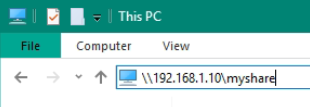
Now access the samba share by logging in with smbuser from Windows.
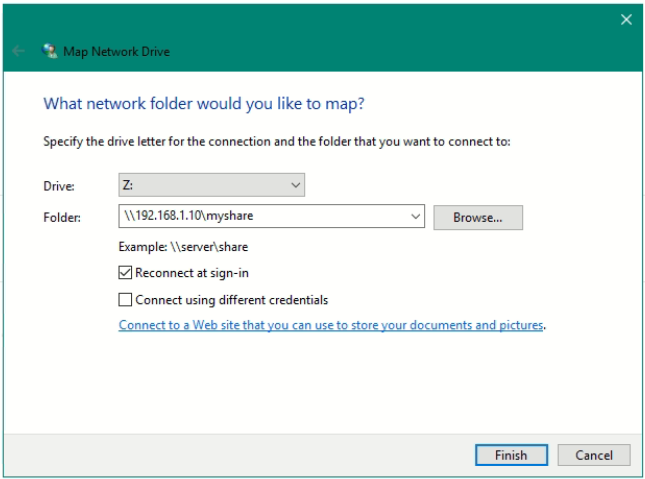
If you want to map a network drive permanently, click on map network drive in the file explorer ribbon computer tab.
Samba File Share Access from Linux
From another Linux use smbclient to access the samba share in the CLI.
smbclient //SERVER_IP/myshare -U smbuser
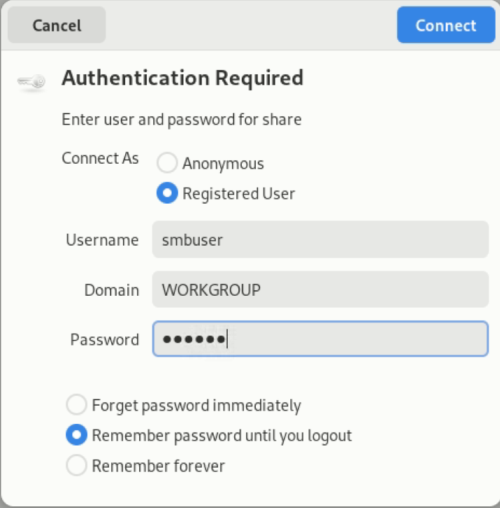
If using a graphical interface like Gnome File, Nemo, Nautilus or Caja use smb://SERVER_IP/myshare.
Troubleshooting
If you want to access the Samba share from a Windows Server 2016 or 2019 and newer. The key AllowInsecureGuestAuth must be set to 1 in the registry.
To do this, run the following command in a command prompt opened as an administrator.
Alternatively open the group policy editor gpedit.msc and go to Computer Configuration > Administrative Templates > Network > Lanman Workstation, and enable Enable insecure guest logons.
If you cannot reach the Samba share from other hosts where icmp is responding, check the ports TCP/445 and TCP/139 allow incoming traffic.
Check and ensure that SMB and NetBIOS Over TCP/IP (NBT) File and Printer Sharing (NB session outgoing) is allowed by the Windows Firewall. Open the mmc console by hit Win+E key enter firewall.cpl and click ok, choose advanced settings.
You may check the Samba NMB Daemon and SMB Daemon status.
sudo systemctl status nmbd.service smbd.service
Samba File Share Logging on Debian
If you experience any problems, check the samba logs for current events.
If logon is successful, an output like this will appear.
Sep 14 08:02:04 SMBSERVER systemd[1]: Started smbd.service - Samba SMB Daemon.
Sep 14 08:04:22 SMBSERVER smbd[15068]: pam_unix(samba:session): session opened for user smbuser(uid=1003) by (uid=0)
Network Time Protocol for Samba File Share
Precise time is the basic of every device, so always check if the server has a synchronous time. Check the date and time with the date command, also consider implementing an NTP time server. Open a terminal and run the following command to install the ntp package.
sudo apt install ntp -y
Configure NTP (optional) you can edit the NTP configuration to customize NTP behavior. Such as adding specific NTP servers from your location or configuring it as an NTP server for your local network.
sudo vi /etc/ntpsec/ntp.conf
After making any changes to the configuration file, restart the NTP service to apply the changes.
sudo systemctl restart ntpsec
Now may you want check the status of NTP synchronization using the ntpq command also check the current time.



 If you are not familiar with vim may nano might be your choies!