
Customizing the Start Menu and Taskbar in Windows 11 and 10 with Stardock Start11
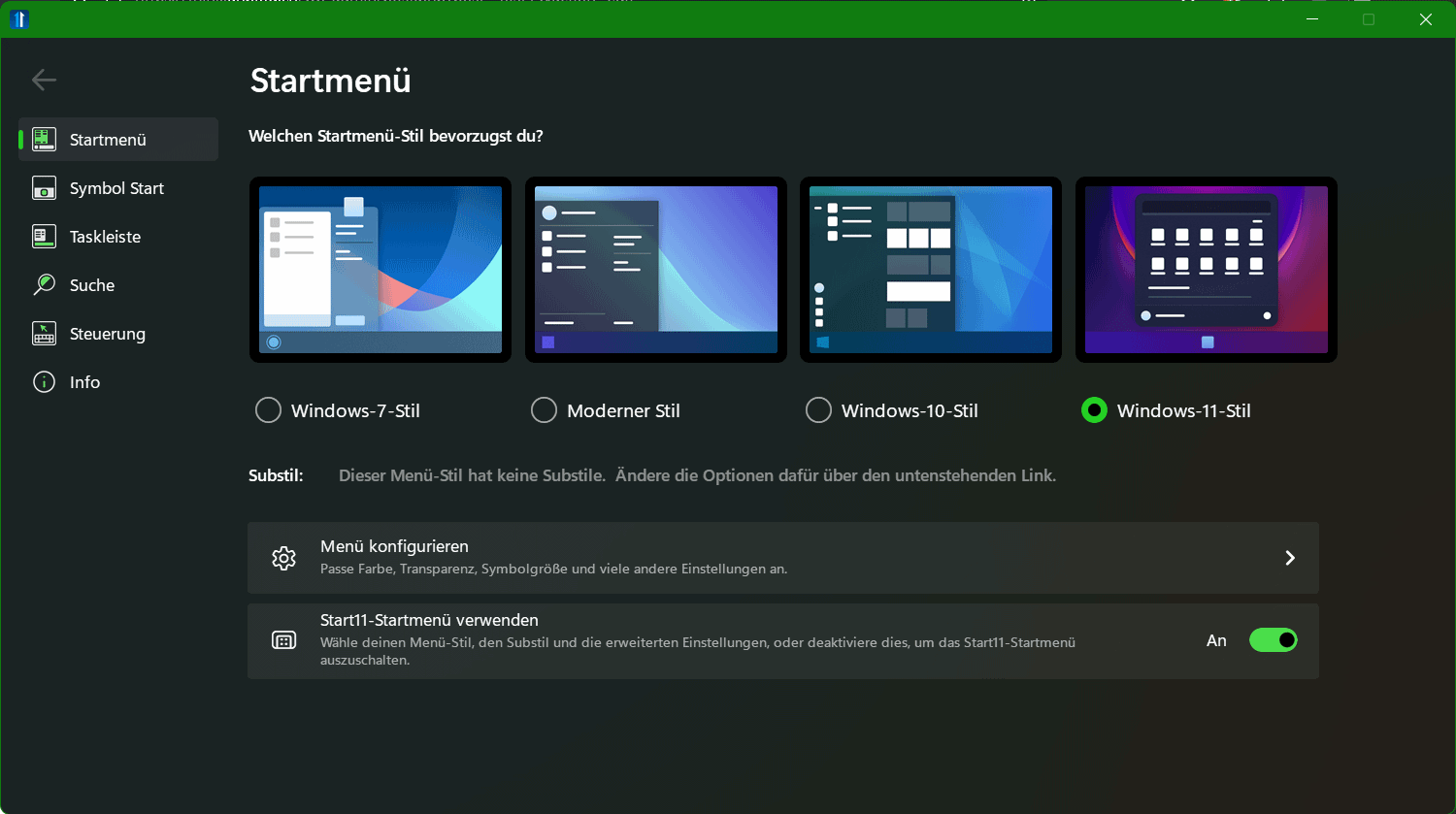
Stardock Start11 can visually customize the start menu and taskbar of Windows 11 and Windows 10 and enrich it with additional functions and enhanced features.
There are various layouts to choose from and it is possible. For example, to get a classic start menu in the style of Windows 7. Start11 even bring back missing functions from old Windows versions. Start11 version 1.47 is currently available as a free trial version.
Install Stardock Start11
Stardock Start11 can be deployed using the Windows Package Manager as follows. Open a command prompt with hit Windows+R to run cmd
Then ran the following command line.
winget install -e --id Stardock.Start11Start11 works on Windows 11 and Windows 10 (32-bit/64-bit), but older windows versions are not supported. After installation, the software can be started as a 30-day trial version by providing a valid email address.
Make Windows 11 more individual
Start11 is primarily aimed at those users who are not satisfied with the Windows 11 start menu and would like the old Windows 10 or Windows 7 start menu back. After the start, the software offers four different design templates for this purpose. These can also be further adjusted and, for example, use a compact representation or a grid style.
Additional options to customize
Additional options make it possible to customize the color, transparency and other properties of the start menu. If you want, you can even change the start button. The taskbar can also be given a personal touch by changing the transparency, color, texture and size.
New Start11 Features
However, Start11 not only changes the Windows design, but also brings some useful functions with it. For example, it is possible to place the taskbar back at the top of the screen under Windows 11 and to expand the greatly reduced context menu. A separate search function promises better results than Windows own search and can also filter them by file type and search through file contents.
Start11 can be tested for 30 days free of charge and without any restrictions on the range of functions, after which the purchase of a license key is required. This costs around seven euros for activation on a device.
More alternatives
A similar tool is available with StartAllBack. It gives Windows 11 back the look of Windows 10 or Windows 7. The respective themes can be easily selected, which automatically customizes the start menu, taskbar, icons and command bar in Windows Explorer.
Install StartAllBack
Open a command prompt with hit Windows+R to run cmd
winget install startallbackTaskbar11 open-source tool
If you just want to move the taskbar to the top of the screen. Can do this with the open source tool “Taskbar11”.
The open-source tool can also remove unnecessary icons and optimize taskbar behavior on multi-monitor systems. Taskbar11 is currently available in version 6.0.
Taskbar11 does not require installation and can therefore be run directly after download. The prerequisite is of course Windows 11, so the software does not work with older versions of the operating system.
At the first start, a security warning may have to be confirmed by the Microsoft Defender Smart Screen (first click “More info” and then “Run anyway”).
 you can of course choose your favorite editor, for example instead of vi maybe nano is your editor of choice.