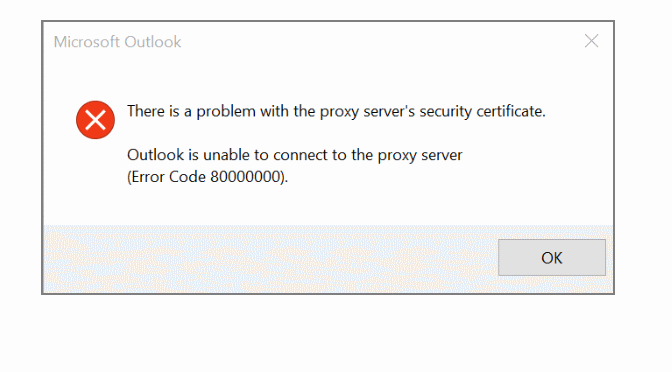
Microsoft Outlook users report certificate problem that after cumulative update 21H2 for Windows 10 or after upgrading to Windows 11, that with some versions of Outlook, including Outlook for Microsoft 365, the connection to the Exchange Server stops working when opening and the error message appears that Outlook cannot connect to the proxy server. This article describes the cause and shows the appropriate workaround to solve the problem.
Outlook users receive the error message cause certificate problem with error code:
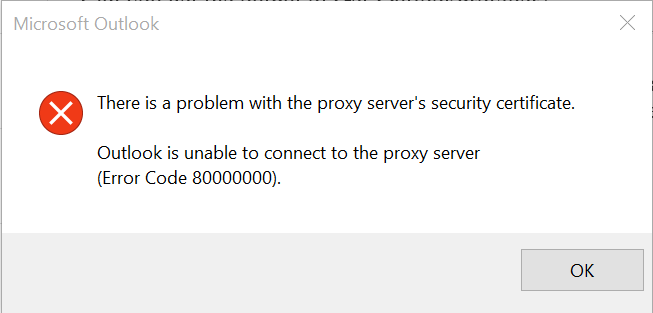
There is a problem with the proxy server’s security certificate.
Outlook is unable to connect to the proxy server. (Error Code: 80000000).
Cause
The encryption protocol (Transport Layer Security)TLS 1.0 to encrypt the connection, has been disabled and removed by the Windows 10 Update, or an upgrade to Windows 11 on the local computer.
Solution
Enable TLS 1.0 on the local Windows 10 or Windows 11 computer. To do this, paste the registry keys in the command prompt opened as administrator as follows:
This is more of a workaround than a solution and is not recommended for a final fix because TLS 1.0 has been discontinued and should no longer be used. However, if one needs an immediate solution to the highlighted problem, TLS 1.0 can be enabled via the registry on the local Windows 11 or Windows 10 computer.
Tutorial: OpenSSL provision on Windows 10 and Windows 11
OpenSSL was previously reserved for Linux operating systems or had to be compiled from the source code itself under Mac and Windows. With Win32/Win64 OpenSSL, the open source software library can also be run on 32-bit and 64-bit Windows OS (x86/i386) and can be integrated on Windows machines via installer.
OpenSSL is widely used and found by encryption in numerous application and secure connections, as well as for SSL/TLS connections HTTPS, including cryptography in SSH, OpenVPN and DNSSEC.
The Win32/Win64 OpenSSL installation project from Shining Light Productions (slproweb.com) carrying the ease of deployment of OpenSSL for Microsoft Windows. The installation consists of downloading and unpacking the binaries, which eliminates the need to compile source code.
Installation
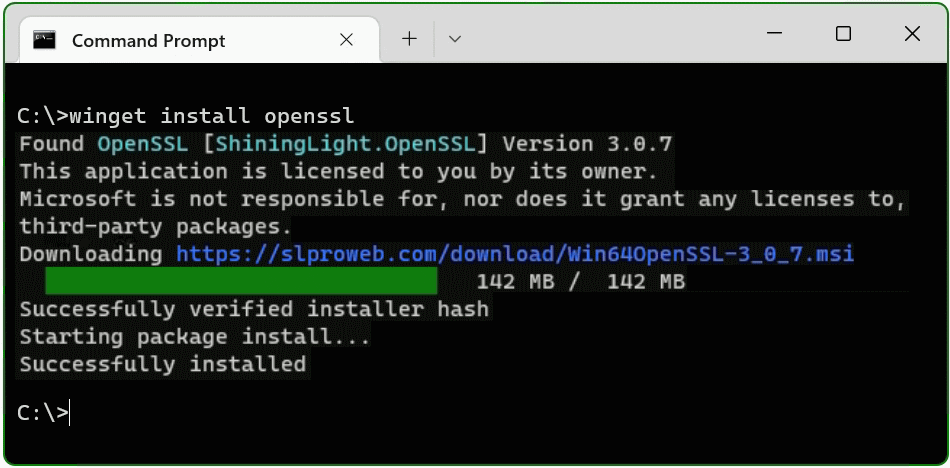
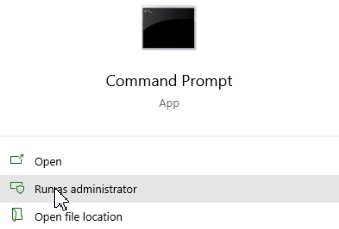
This tutorial shows two methods to deploy OpenSSL on Windows 10 and Windows 11. The simple method right at the beginning, by running Windows Package Manager with hit the Windows-logo+R keys and enter cmd in the Run box then click OK, or press and hit cmd then click the command prompt icon.
Click Start and hit cmd
In the now opened command prompt ran the following command, if you are not authorized as administrator with the logged in user, you can select “Run as administrator”.
C:\> winget install openssl
The Windows package manager “winget” allows you to install applications and other packages by using the command line. If winget is started for the first time, you will be prompted to confirm the source agreement terms, by hit the Y key.
The OpenSSL package is now installed. The second method is to download and install the package.
Install Win64 OpenSSL package manually
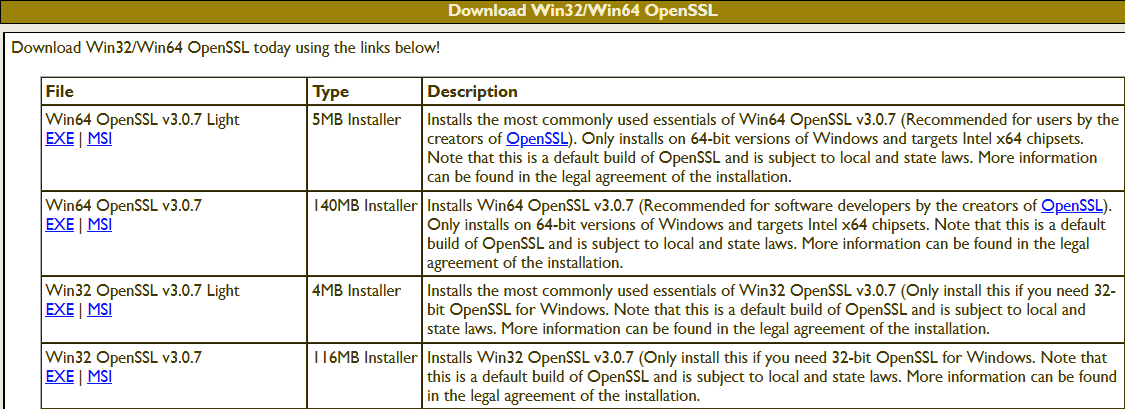
The table (screenshot) on the slproweb.com website contains the versions for Win32 and Win64 OpenSSL as EXE and MSI installers.
Recommended here is the latest version with the most commonly used essentials of Win64 OpenSSL v3.0.7, at the time of writing this article, it is Win64 OpenSSL v3.0.7 EXE Light, at the top of the first line.
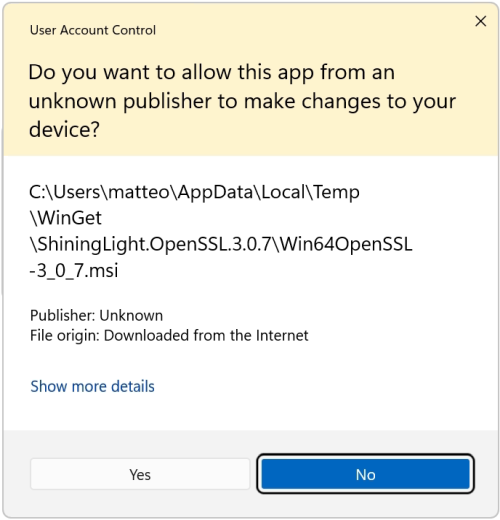
Double-click to execute the file Win64OpenSSL_Light-3_0_7.exe will the setup wizard appears. Confirm the Windows Account Control (UAC) with Yes to continue the installation.
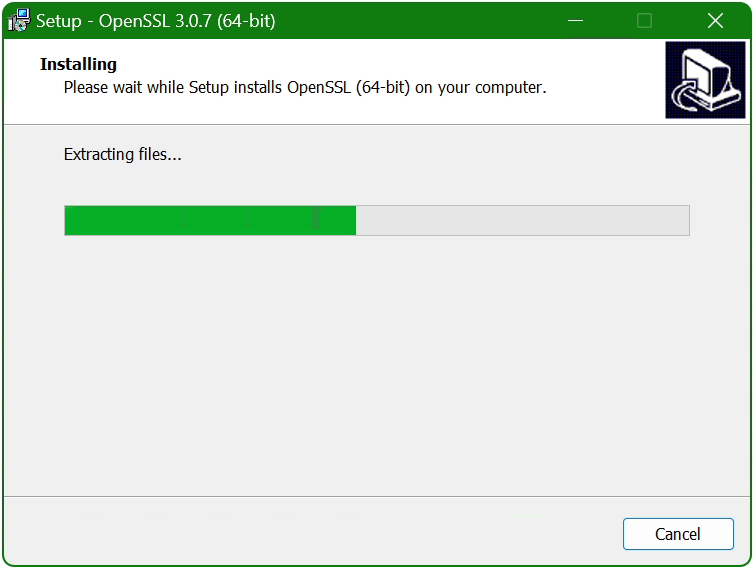
The setup wizard unpacks and copies the OpenSSL files.
Set up the OpenSSL environment
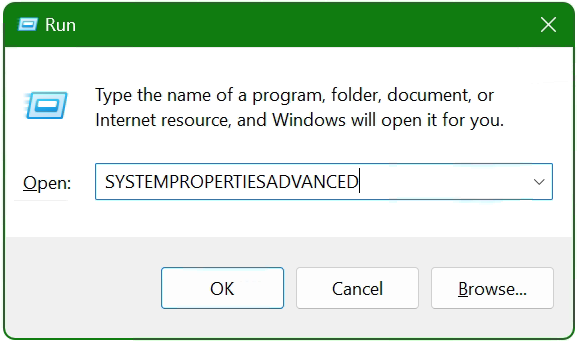
After the OpenSSL files are copied and installed, the search path and environment variable are now added to the operating system, with + R and paste SYSTEMPROPERTIESADVANCED and click OK.
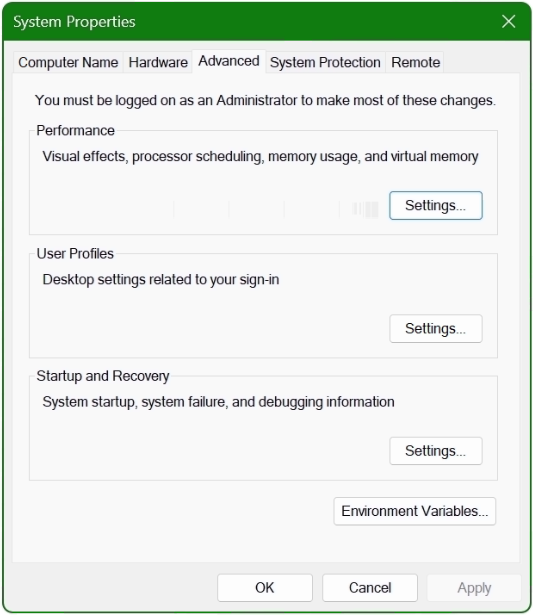
The System Properties window opens.
Click the Environment Variables button at the bottom.
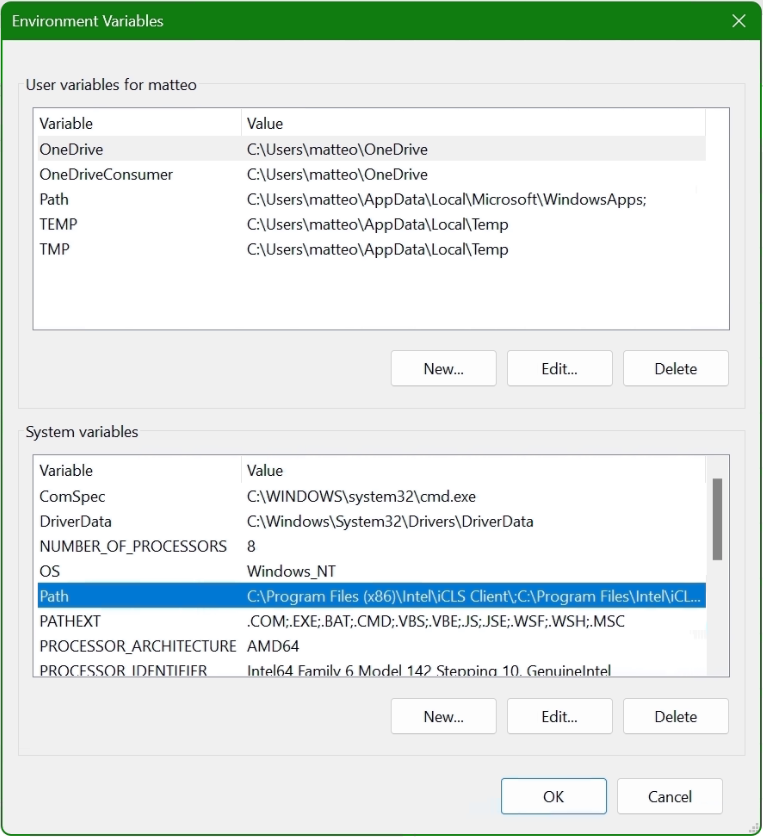
In the lower area System Variables, select the Path line with the mouse and click on the Edit button.
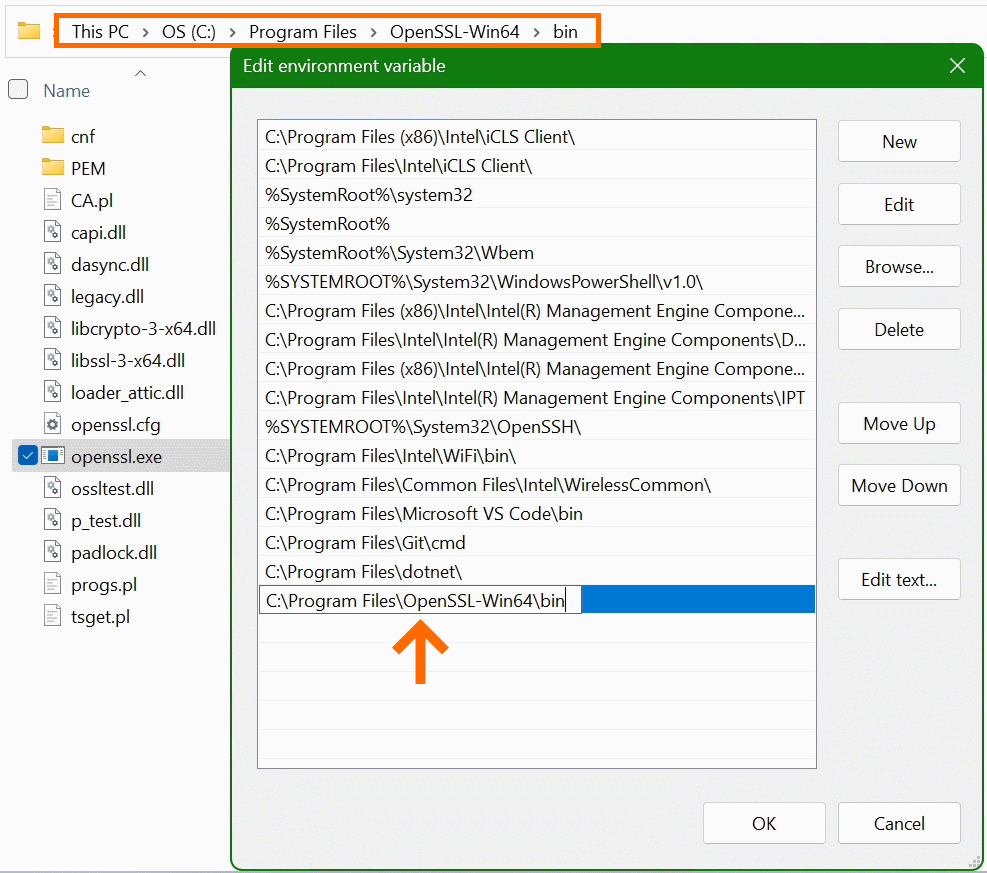
In the “Edit Environment Variables” window, click New to add the path to the OpenSSL-Win64\bin folder under Program files. The path in which the file openssl.exe is located can be found with Windows Explorer and copied to the clipboard, there is also the possibility to choose the path to the bin folder with the Browse button. Confirm the action with OK.
Now add another system variable with click New.
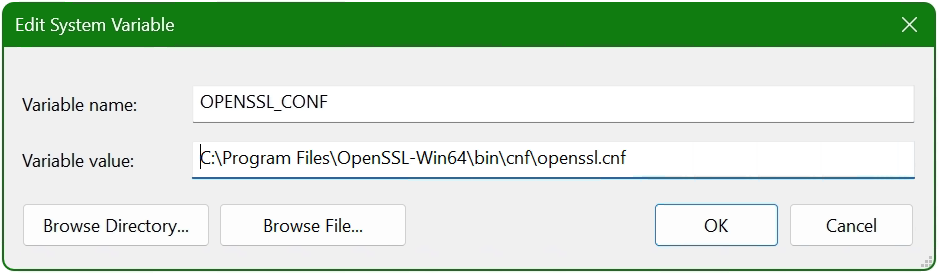
Enter OPENSSL_CONF in the Variable name field. In the next field insert the path to which the file openssl.cnf is located, here it is C:\Program Files\OpenSSL-Win64\bin\cnf\openssl.cnf
The installation is now complete and OpenSSL can be used. First of all, there is the opportunity to check the OpenSSL provisioned release.
C:\> openssl version -a
OpenSSL 3.0.7 1 Nov 2022 (Library: OpenSSL 3.0.7 1 Nov 2022)
built on: Tue Nov  1 16:04:12 2022 UTC
...
C:\> openssl version -d
OPENSSLDIR: "C:\Program Files\Common Files\SSL"
The OpenSSL Toolkit is a versatile utility with many options, but under Windows there is not the possibility of using the man page, as is known on Linux. However, the openssl help command provides context-sensitive help, such asopenssl help s_clientor useopenssl help x509oropenssl help reqto show just a few examples. Help is also offered on the documentation pages on the web, where manpages can also be found.
Useful OpenSSL Examples
A few of the most commonly used openssl command examples in the console are shown below, note that this is not a comprehensive collection of all possible applicable commands of this powerful open source toolkit.
openssl x509 -noout -text -in ca-cert.pem
Displaying and print the ca-cert.pem certificate file in plain text.
Check protocol version and ciphersuite, peer certificate and hash used.
openssl rand -base64 20
Generate a random password in base64 using OpenSSL, can be used as a passphrase to hide private keys from spying eyes.
These were just a few examples, because openssl is a versatile toolkit that offers numerous application options.
Conclusion
The OpenSSL open-source library for cryptography is more important than ever and indispensable. Connections are encrypted and protected, so why shouldn’t the OpenSSL Toolkit be used on Windows? Creating and managing Digital X. 509 certificates, check algorithms for data encryption such as Chiper Suite, digital fingerprint, MD5 and SHA hash values can be checked, which was previously reserved only for Linux.
Sources Links: slproweb.com Win32/Win64 OpenSSL Installation Project for Windows openssl.org Cryptography and SSL/TLS Toolkit

 and hit cmd then click the command prompt icon.