
PowerShell Invalid Password Exception

In working with Powershell by creating user accounts, may the invalid password exception, InvalidPasswordException error message appears.

New-LocalUser: An exception of type “Microsoft.PowerShell.Commands.InvalidPasswordException”.
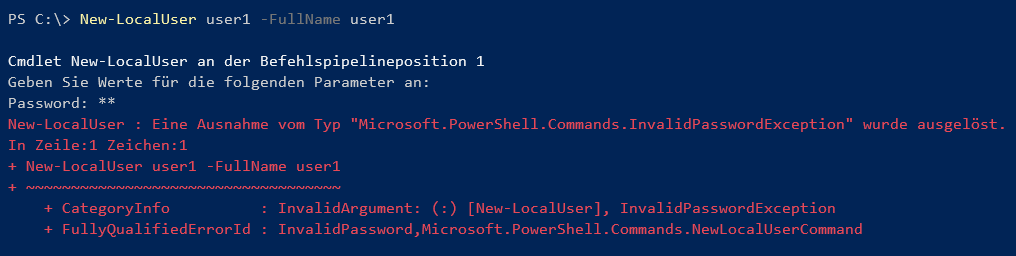
PowerShell The error message invalid password exception appers.

Cause

The Local Group Policy for password complexity requirements do not match the input, or the minimum password length is not met. The Powershell error message invalid password exception appers.

Solution

Change Minimum Password Length

Set Minimum Password Length to increase or decrease the password length to the desired length.
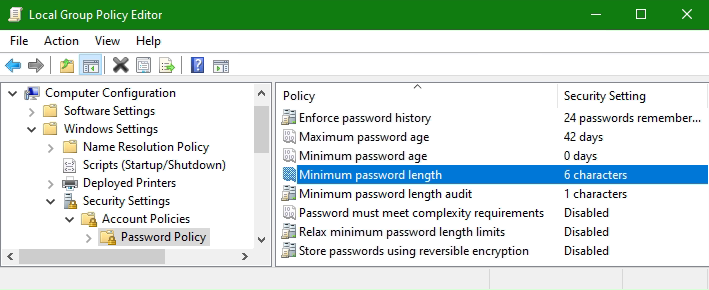
powershell error message invalid password exception appers.. Change Minimum Password Length

In Local Group Policy (gpedit.msc), change the Minimum Password Length, 0 for no Minimum Password Length.

Example. creates a user account in the powershell

The following Powershell command creates a user account with a password from the one line command, useful for script processing.

New-LocalUser user1 -Password (ConvertTo-SecureString "8170af" -AsPlainText -Force) -FullName user1 -Description user1 -PasswordNeverExpires -UserMayNotChangePassword

New User Account

If create a local user in Windows 10 or 11 you can use the User Accounts control panel. But you can also use PowerShell to create a new local user. This way we can easily automate creating a local account on Windows devices.

To create a local user with PowerShell you will need to have administrator access to the computer and run PowerShell as admin (elevated). Otherwise, you won’t be able to create accounts.

In this post, I will explain how you can create a new localuser.

New-LocalUser

To create a new local user we are going to use the New-LocalUser cmdlet in PowerShell. The cmdlt provide options to set a password for the account or create an account without a password.

Password exception

As you can see this won’t allow you to run the script autonomous, because you will need to enter a password. This is also the challenge with creating local users, most of the time you want to supply the password in a secure way.

If you run the script remotely or under your own supervision then you could write the password inside a PowerShell script and convert it to a secure string. But keep in mind, anyone who opens the script is able to read the password.

How to Fix UniFi Controller log4j vulnerability

The UniFi Controller software uses the Java Log4j framework for logging, currently Log4j 2.13.3 is used by UniFi Controller (“UniFi Network Application”) version 6.5.53.

This post shows how to update to Apache Log4j 2.17.0 by replacing the log4j-*.jar files using the Unifi Controller Software. The workaround described here has been successfully implemented with the Unifi Controller software version 6.0.23, 6.0.45 and 6.5.53.

Vulnerability CVE-2021-44228

The Log4j team has been made aware of a security vulnerability, CVE-2021-44228, that has been addressed in Log4j 2.12.2 and Log4j 2.17.1. Log4j’s JNDI (Java Naming and Directory Interface) support has not restricted what names could be resolved. Some protocols are unsafe or can allow remote code execution.

Mitigation

In version 2.12.2 Log4j disables access to JNDI by default. Usage of JNDI in configuration now need to be enabled explicitly. Calls to the JndiLookup will now return a constant string. Also, Log4j now limits the protocols by default to only java. The message lookups feature has been completely removed. Lookups in configuration still work. Furthermore, Log4j now disables access to JNDI by default. JNDI lookups in configuration now need to be enabled explicitly. Also, Log4j now limits the protocols by default to only java, ldap, and ldaps and limits the ldap protocols to only accessing Java primitive objects. Hosts other than the local host need to be explicitly allowed.

Apache Log4j 2 Update UniFi on Windows

To install the Log4j 2.17.1 version for a Unifi Controller on Windows 10 or Windows Server 2019 (Update), open a command prompt as administrator to run the following commands. Basically the commands are for any Windows version, instead of curl and tar you have to use a browser for download and Winzip to unzip.

cd %userprofile%\downloads
curl -O https://dlcdn.apache.org/logging/log4j/2.17.1/apache-log4j-2.17.1-bin.zip
tar -xf apache-log4j-2.17.1-bin.zip
cd apache-log4j-2.17.1-bin
copy log4j-api-2.17.1.jar "%UserProfile%\Ubiquiti UniFi\lib"
copy log4j-core-2.17.1.jar "%UserProfile%\Ubiquiti UniFi\lib"
copy log4j-slf4j-impl-2.17.1.jar "%UserProfile%\Ubiquiti UniFi\lib"
cd "%UserProfile%\Ubiquiti UniFi\"
java -jar lib\ace.jar stopsvc
cd lib
ren log4j-api-2.13.3.jar log4j-api-2.13.3.old
ren log4j-core-2.13.3.jar log4j-core-2.13.3.old
ren log4j-slf4j-impl-2.13.3.jar log4j-slf4j-impl-2.13.3.old
mklink log4j-api-2.13.3.jar log4j-api-2.17.1.jar
mklink log4j-core-2.13.3.jar log4j-core-2.17.1.jar
mklink log4j-slf4j-impl-2.13.3.jar log4j-slf4j-impl-2.17.1.jar
cd ..
java -jar lib\ace.jar startsvc

In the _unifi_root_/lib/ directory, the existing 2.13.3-files must be overwritten, symbolic links are created so that the 2.17.1-files point to the original 2.13.3-files. After the log4j-*.jar files have been replaced, the Unifi Controller can be restarted.

Note. Apache Log4j 2 updates become available continuously, so broken link to download can occure, watch up the file index here for the latest release, then replace the version number.

Apache Log4j Update UniFi on Linux

To update the Apache Log4j 2.17.1 version for a Unifi Controller on Linux, you become root in a terminal shell and execute the following commands.

$ systemctl stop unifi
# without systemd /etc/init.d/unifi stop
$ wget https://dlcdn.apache.org/logging/log4j/2.17.1/apache-log4j-2.17.1-bin.tar.gz
$ gunzip apache-log4j-2.17.1-bin.tar.gz
$ tar -xf apache-log4j-2.17.1-bin.tar
$ cd apache-log4j-2.17.1-bin
$ cp log4j-api-2.17.1.jar log4j-core-2.17.1.jar log4j-slf4j-impl-2.17.1.jar /usr/lib/unifi/lib
$ cd /usr/lib/unifi/lib
$ mv log4j-api-2.13.3.jar log4j-api-2.13.3.old
$ mv log4j-core-2.13.3.jar log4j-core-2.13.3.old
$ mv log4j-slf4j-impl-2.13.3.jar log4j-slf4j-impl-2.13.3.old
$ ln -s log4j-api-2.17.1.jar log4j-api-2.13.3.jar
$ ln -s log4j-core-2.17.1.jar log4j-core-2.13.3.jar
$ ln -s log4j-slf4j-impl-2.17.1.jar log4j-slf4j-impl-2.13.3.jar
$ systemctl start unifi

In the /usr/lib/unifi/lib/ directory, the existing 2.13.3-files must be overwritten, symbolic links are created so that the new 2.17.1-files point to the old 2.13.3-files, the 2.13.3-files are renamed to *.old. After the log4j-*.jar files have been replaced in this way, the Unifi Controller can be started.