Starting with the feature update October 2020, Windows 10 will come with new clipboard history features as announced.
The clipboard history which is long awaited by Windows users, now this allows to store multiple text elements, images or even files on the clipboard.
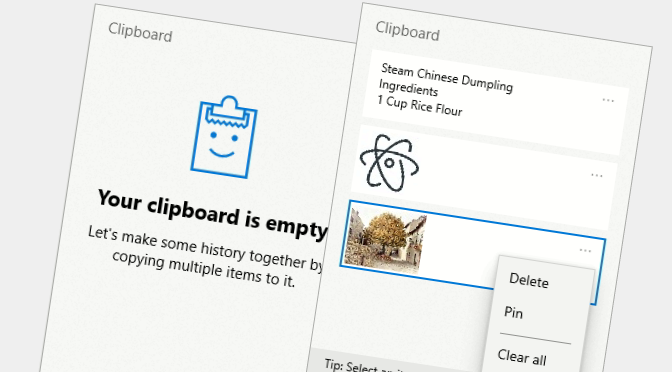
The new clipboard can now save up to 25 entries and displays text and images in a history. Save multible items to the clipboard for use later. Press the Win+V key to view your clipboard history and paste from it.
The latest items are always placed at the beginning, which same as previously copied with Ctrl+C. Clicking on an item to paste it from the cursor position, for example in Notepad or in a Word document. By clicking the pin button on the right of an entry, a pop up window appears with the option to delete an entry or delete all, more on this in the next paragraph. Win+V still paste the last item from clipboard.
The new practical feature can be found on the Pin (P), which is available by clicking on the pin button to the right of the entry. This means that the entries remain on the clipboard, even during a Windows restart or if the clipboard history is completely removed with a click to Delete All.
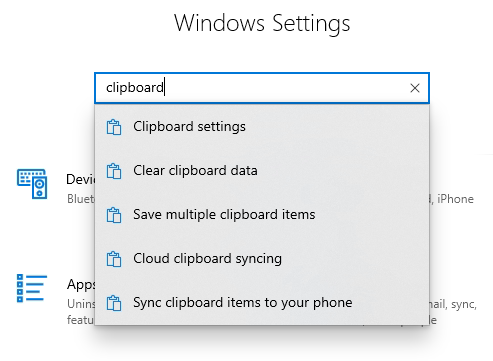
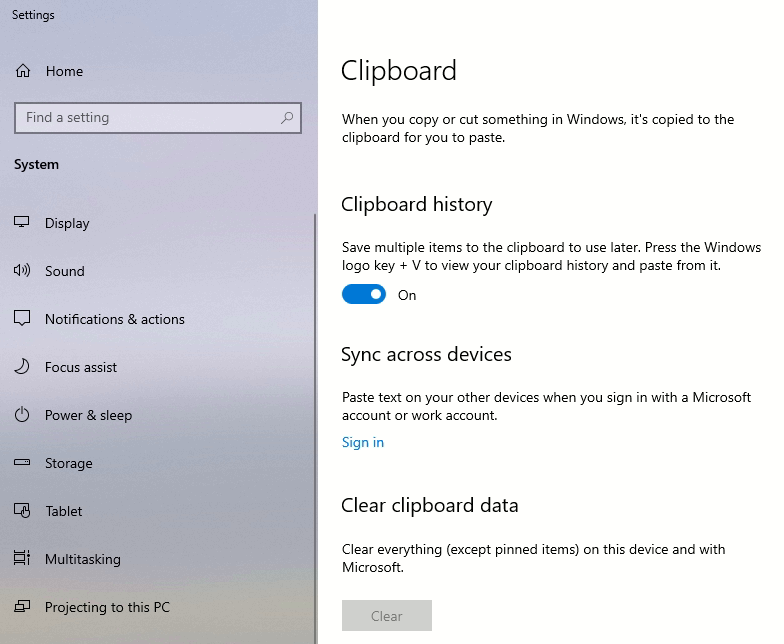
The clipboard history can be turn it on in the settings – by entering clipboard in the search box.
Figure: Enable Windows Clipboard History
Clipboard in Windows 11
Copy images and text from one PC to another with a cloud-based clipboard. Not only can you can paste from your clipboard history, but you can also pin the items you find yourself using all the time.
To get to your clipboard history, press Windows logo key + V. From the clipboard history, you can paste and pin frequently used items by choosing an individual item from your clipboard menu. Pinning an item keeps it from being removed from the clipboard history to make room for new items.
Clipboard items share to another Windows device
Select Start > Settings > System > Clipboard.
Select Sync across devices and toggle it on.
Select Automatically sync text that I copy. The sync feature is tied to your Microsoft account, or your work account, so remember to use the same login information on all your devices.
Suppress ServerSignature and ServerTokens on Apache and Nginx HTTP-Server
There are numerous ways websites can be exposed to security threats. Information in the ServerSignature and ServerTokens is an increased risk for systems and can be used against them.
The ServerSignature and ServerTokens of Apache und NGINX HTTP-Server provides important information about the web server with the extensions and the operating system. For an Apache server on Debian GNU/Linux, the Apache version number and operating system information is displayed in the HTTP server header signature.
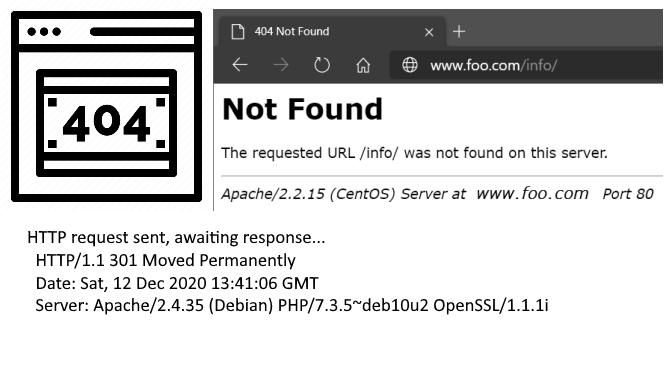
This information displayed in the HTTP server header at line 9 and provides information about the web server version number and the PHP version, the OpenSSL version for Transport Layer Security and the operating system.
Suppress Apache HTTP-ServerSignature
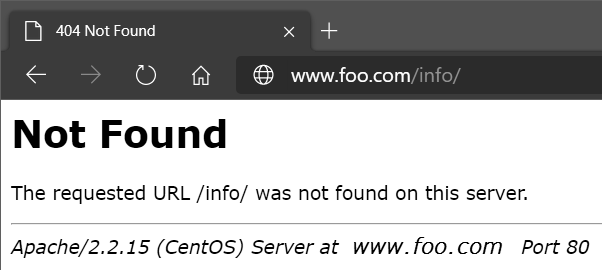
The HTTP-ServerSignatures can contain sensitive information about the software versions running on the web server. If a page is not found on the server, the server sends the client an error page and the page appears in the browser.
HTTP/1.1 404 Not Found
Browser Seite with HTTP-Statuscode 404 and Serversignature
A dead link is returned to the browser with the HTTP status code 404, and further information about the web server and version used are also disclosed.
It is recommended that the ServerSignature and ServerTokens be deactivated if the system is to be protected from open threats. This tutorial shows how to disable and suppress the serversignature.
Disable Apache HTTP-ServerSignature on Debian GNU/Linux
Under Debian 10 and newer the ServerSignature is configured in the file security.conf.
$ vi /etc/apache2/conf-available/security.conf
The default setting on Debian 10 or newer also on Ubuntu for ServerSignature is On and ServerTokens is Full.
ServerTokens Prod
ServerSignature Off
You can suppress ServerSignature and ServerTokens as follows.
ServerTokens Prod
ServerSignature Off
Apply change the Apache web server configuration.
$ systemctl restart apache2.service
Disable Apache HTTP ServerSignature for RedHat Linux
On RedHat the serversignature is changed in the Apache configuration httpd.conf file.
$ vi /etc/httpd/conf/httpd.conf
...
ServerTokens Prod
ServerSignature Off
..
Apply changes of the HTTP server signature for RedHat Linux.
$ systemctl restart httpd.service
After disable the ServerSignature, it is no longer displayed in the HTTP server header output. The modification can be checked using wget or here.
The output of the PHP version number is deactivated in Debian 10 or newer by expose_php off in the php.ini file.
$ vi /etc/php/7.3/apache2/php.ini
...
expose_php = Off
..
For Rocky Linux (RedHat) the PHP version header is suppress in /etc/php.ini file by expose_php directive.
$ vi /etc/php.ini
...
expose_php = Off
..
Apache HTTP-Response-Header
The Apache ServerTokens directive has the following possible values that are sent to clients when the specific value is set.
ServerTokens Prod
    The Server send (i.e.): Server: Apache
ServerTokens Major
    The Server send (i.e.): Server: Apache/2
ServerTokens Minor
    The Server send (i.e.): Server: Apache/2.0
ServerTokens Minimal
    The Server send (i.e.): Server: Apache/2.0.41
ServerTokens OS
    The Server send (i.e.): Server: Apache/2.0.41 (Unix)
ServerTokens Full
    The Server send (i.e.): Apache/2.4.37 (Debian) PHP/7.3.5~deb10u2 OpenSSL/1.1.1
This setting applies to the entire server and cannot be enabled or disabled on a virtualhost basis.
NGINX HTTP server_tokens OFF
The file nginx.conf must be modify for Nginx web server.
$ vi /etc/nginx/nginx.conf

http {
...
    server_tokens off;
...
Apply changes let disappear the Nginx serversignature.
$ systemctl restart nginx.service
Now the server header will only indicate Nginx with no version number.



 htaccess is only using by Apache web server.