Find files by modified date with option mtime

Find is the command of choice when searching for files and their modified date and time using the option mtime. The Find Command Line Tool offers the option mtime and many more, also useful for applied in shell scripts. The find --help command gives help, and man find shows the man page.

Find Files using mtime and atime

find files with option mtime

In the file system, each file has three timestamps that are changed when certain operations are performed on the file:

  • [a] access (read the contents of the file) – atime
  • [b] change state (change the file or its attributes) – ctime
  • [modify] change the contents of the file – mtime

Files can be searched for with timestamps within a certain age range, or they can be compared to other timestamps.

Find Files with Option -mtime (modify)

The -mtime option returns a list of files if the file was last accessed N*24 hours ago. For example, to find a file from the last month (N=30 days), the -mtime +30 option can be used.

  • -mtime +30 means find file modified 30 days ago.
  • -mtime -30 means less than 30 days.
  • -mtime 30 without + or – means exactly 30 days.

For example, to find text files that were last modified 30 days ago, ran this command:

$ find /home/user -iname "*.txt" -mtime -30 -print

Show contents of files last modified 30 days ago ran the command:

$ find /home/user -iname "*.txt" -mtime -30 -exec cat {} \;

Count the total number of TXT files using wc (Word Count):

$ find /home/user -iname "*.txt" -mtime -30 | wc -l

Delete gzip archive files older than 30 days with ran this command:

$ find /home/user/*.gz -mtime +30 -exec rm {} \;

Find Files with Option -atime (access)

Search by access time, the following command returns the list of all .txt files that have been accessed in the last 30 days:

$ find /home/user -iname "*.txt" -atime -30 -type -f

List all json files accessed exactly 14 days ago:

$ find /home/user -iname "*.json" -atime 14 -type -f

Note. the switch -type f – search for files only exclude directories.

May find some string recursive in all files from the current directory.

$ find . -type f -print0 | xargs -0 grep "some string"

For example, to change all files recursively with chmod from the current directory, but not the directories.

$ find . -type f -print0 | xargs -0 chmod 0644

and vice versa, change all directories recursively with chmod from the current directory, but not the files.

$ find . -type d -print0 | xargs -0 chmod 0755

Find Files with Option -daystart

The -daystart option is used to measure time from the start of the current day instead of 24 hours ago. Find all C++ files (*.CPP) changed yesterday with the following command:

$ find /home/user -iname "*.CPP" -daystart -mtime 1

To list all LOG files in /var/log accessed yesterday use this command:

$ find /var/log -iname "*.log" -daystart -type f -mtime 1

List C++ files modified 2-7 days ago with this command:

$ find /home/user -iname "*.CPP" -daystart -mtime 2 -mtime -7

To find files in the /home/user directory tree that are newer than the files in /mnt/user, ran the command:

$ find home/user -newer /mnt/user

Conclusion

The find command-line tool can be used in the Linux shell to find files by their modification date. With its numerous options, the Command Line Tool offers many possibilities, which are also useful in script processing.


OpenVPN Connect using on iPhone and Android

OpenVPN is enjoying increasing popularity. The OPNsense firewall offers an excellently integrated OpenVPN server with numerous features, but other open source solutions also use OpenVPN, as well as the Synology NAS devices, where OpenVPN is part of the VPN server, which is available in the DSM Package Center. The popular open source VPN solution is available for all common operating systems, from Linux and Windows to MacOS and mobile devices with iOS and Android.

This tutorial shows how to set up OpenVPN Connect and using VPN connections on iOS and Android.

How to use OpenVPN Connect on iPhone and Android

First, the OpenVPN Connect app is loaded onto the device. This is available free of charge in the Apple App Store and Google Play.

OpenVPN Apple StoreOpenVPN Google Play

The configuration of the clients is done by importing the ovpn profile, which contains all the necessary settings.

OpenVPN
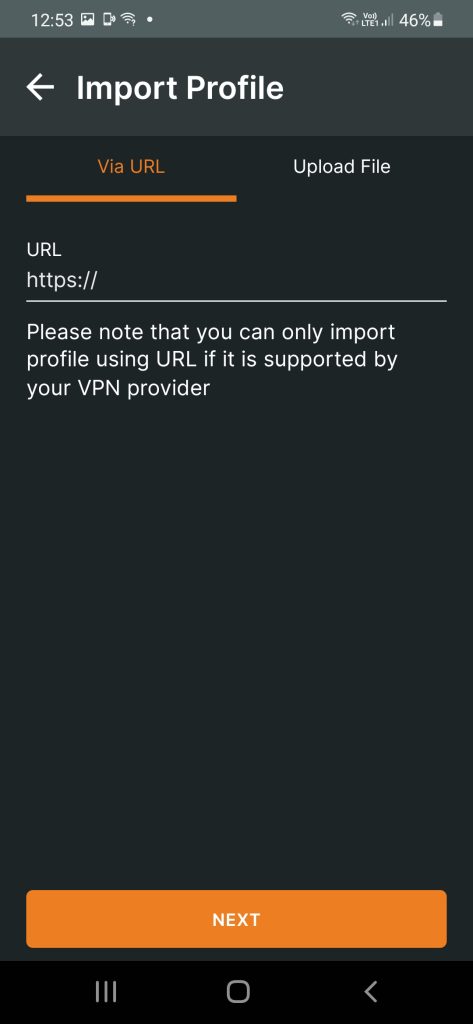
  1. Launch the OpenVPN Connect app
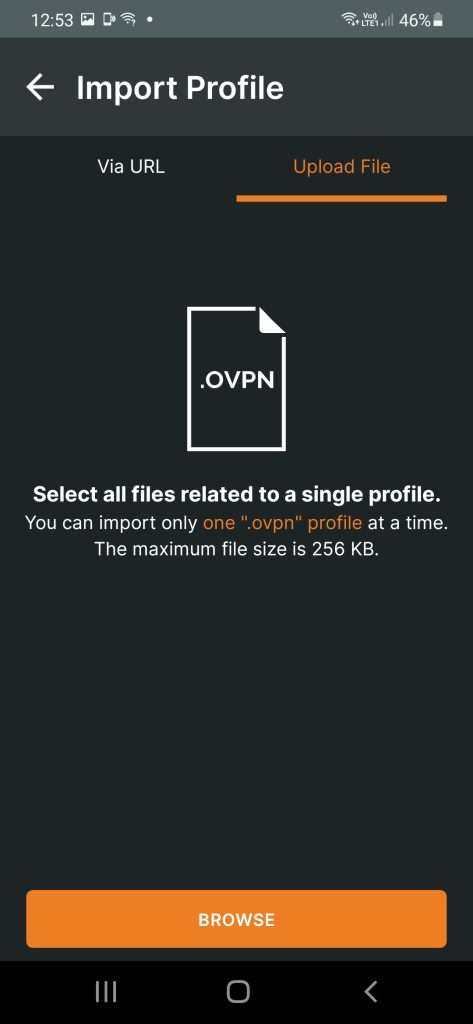
  2. Tap Upload File
  3. Tab BROWSE
  4. Choose My Documents folder – Select Downloads
  5. Select OpenVPN configuration file .ovpn
  6. Tab Done
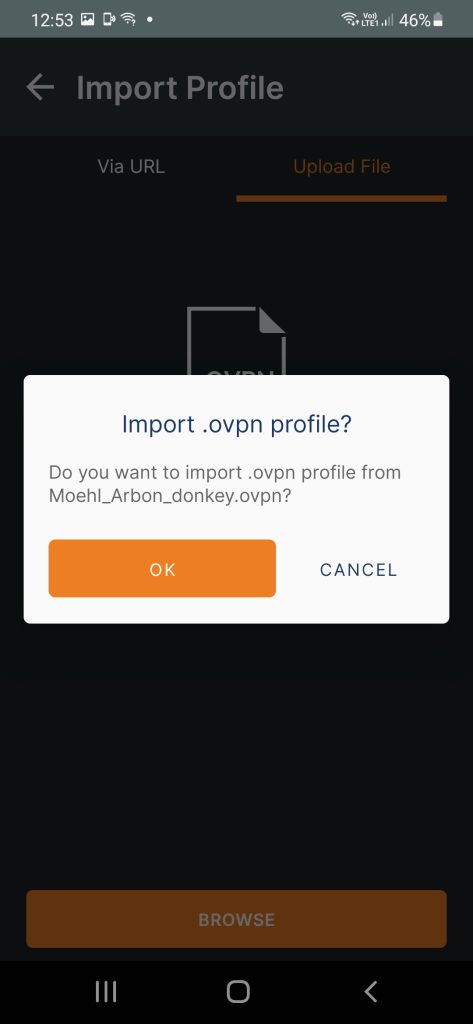
  7. Import .ovpn profile? OK
  8. Enter your username and select CONNECT
  9. For 2FA enter OTP and password together OTP token + password

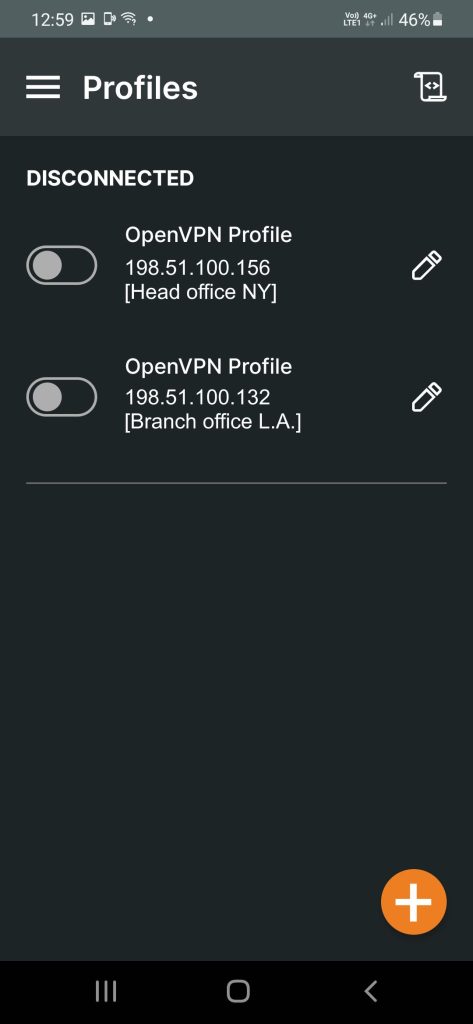
  Import more OpenVPN profiles by tapping on the + symbol.

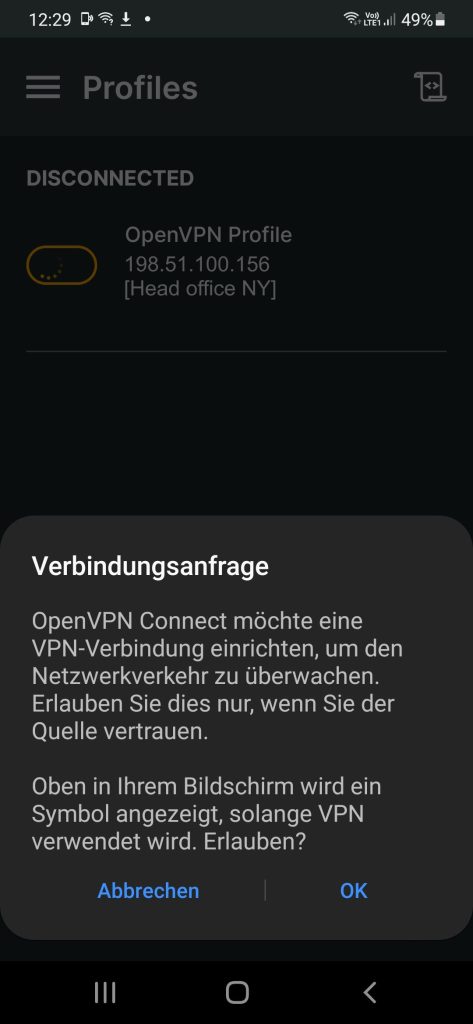
Screenshot gallery of OpenVPN Import Profile for Android.

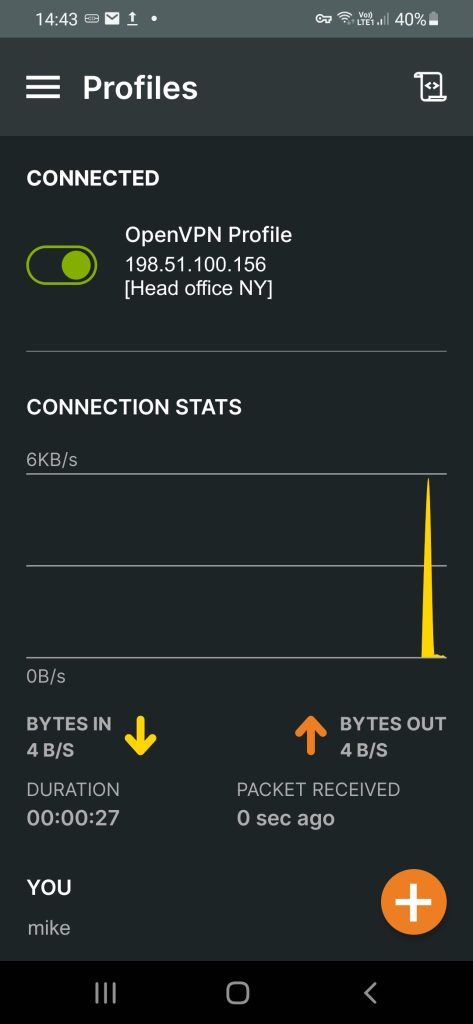
  The first time you connect after tapping the slide switch, the app will ask for permission to add the VPN configuration. If everything has been completed successfully, a VPN tunnel is established by the client to the server, which the app outputs via the status CONNECTED.

How to transfer OpenVPN profile?

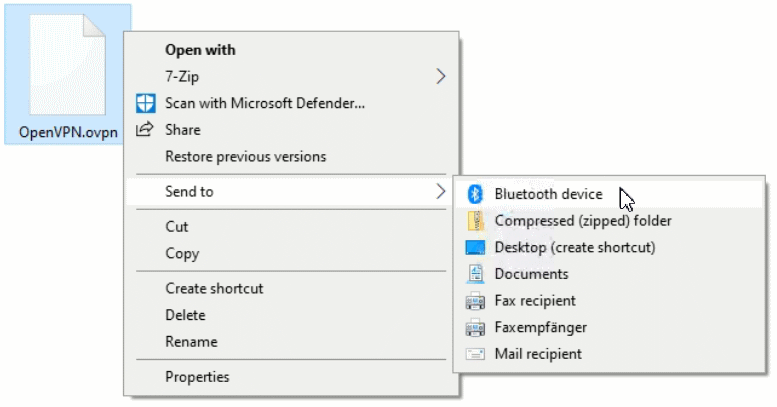
The easiest way to transfer the configuration file (.ovpn) to an iOS or Android device is to transfer the file from the PC to the smartphone or tablet via Bluetooth. First both devices you’re have to pair via Bluetooth, then on the PC select the OVPN file with click the right mouse button, from the context menu choose – Send to Bluetooth device.

How to transfer OpenVPN profile

After confirming with OK, the OVPN file should now be found on the mobile device under “My Documents” in the “Downloads” folder.

Alternatively, you can send the OVPN file by email to your email address and then save it to your smartphone or tablet, or via cloud storage, and if available, via local synchronization such as Synology Drive.

Conclusion

OpenVPN as an open source solution is available for all clients of the common platforms, such as iOS and Android.

The corresponding app can be obtained from the respective store and the configuration is done via a file that contains all the settings and that you download from the OpenVPN server.

The OPNsense firewall is particularly recommended as an OpenVPN server. Numerous options can be configured, such as client and server certificates and 2FA authentication, with the integration of LDAP for active directory and google authenticator TOTP for multi-factor authentication.

Sources:

The next relevant post might also be helpful, see How To OPNsense 2FA TOTP with Google Authenticator shows the provisioning.