
Start SSH from KeePass using Windows Terminal

This tutorial describes how to start an SSH terminal session under Windows, open the connection from the KeePass Manager, the known password Safe, with using OpenSSH and the Windows Terminal. Prerequisite is that OpenSSH is installed on Windows, from Apps & Features – Optional Features. The Windows Terminal can be found in the Microsoft Store.

The new Windows Terminal has evolved and achieves the parity to be measured with modern terminals of other operating systems such as the GNOME Terminal. Not only is it free, it can also be seen with the well-known terminal tools on Windows, such as PuTTY and KiTTY.

Windows Terminal is located under this path for batch processing.

%LOCALAPPDATA%\Microsoft\WindowsApps\wt.exe

Here from KeePass via the field URL with the “cmd://” argument.
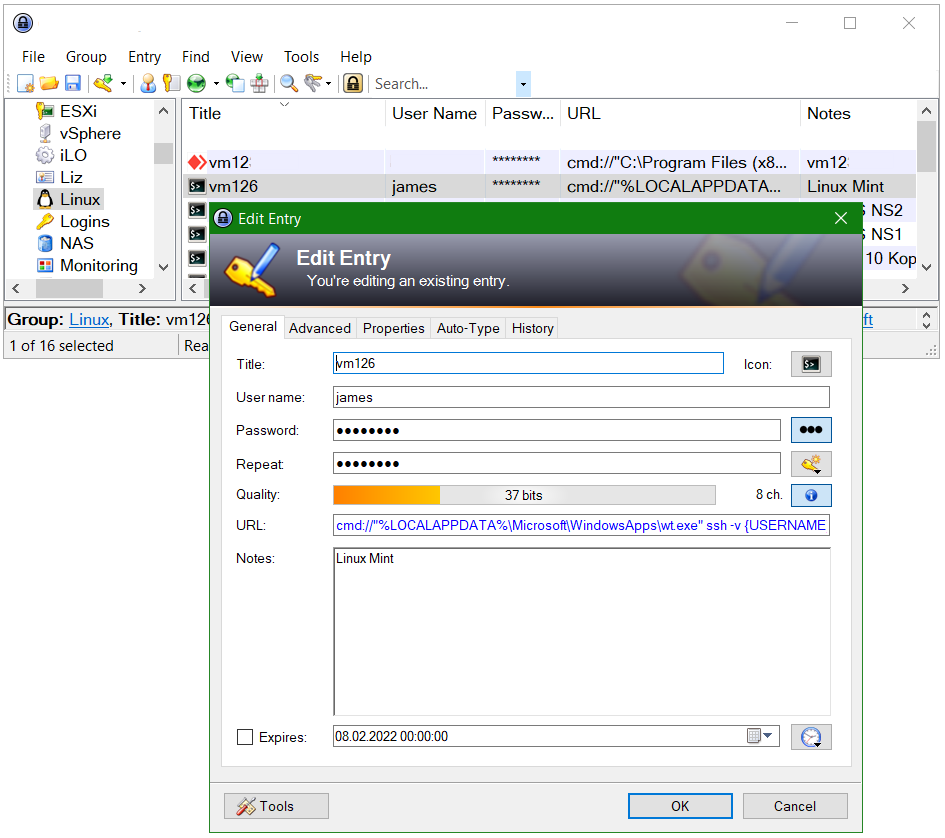
Start SSH session from KeePass with Windows Terminal

For the entry in KeePass, add the following line into the URL field.

cmd://"%LOCALAPPDATA%\Microsoft\WindowsApps\wt.exe" ssh -v {USERNAME}@{TITLE}

  From the “Title” field, the hostname is passed in {TITLE}, from “User name” the user-ID is passed in {USERNAME}. If a different port is used for SSH add the port e.g. -p 60622

Click OK to close and save the entry. A double-click on the entry in the URL column opens the Windows Terminal.
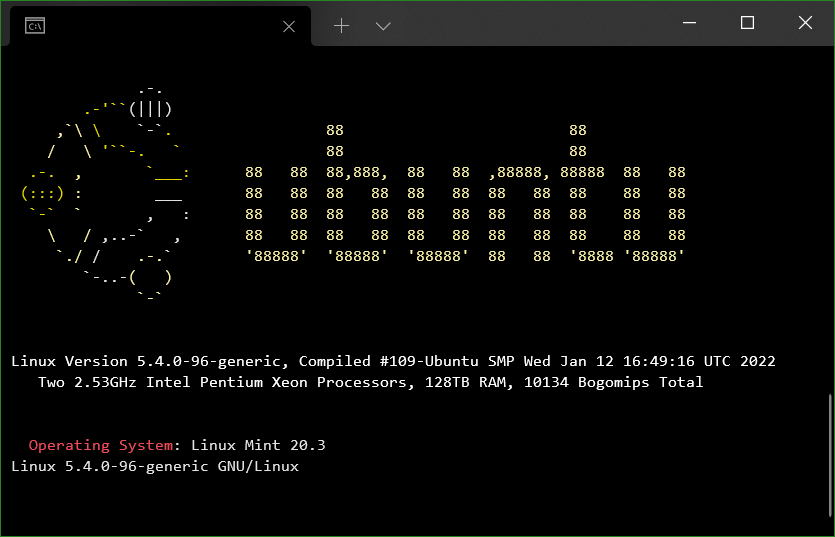
Windows Terminal SSH Session
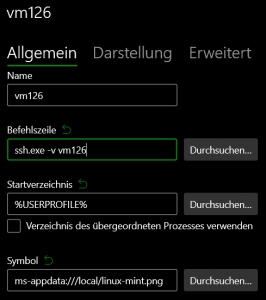
Windows Terminal Einstellungen

The host entry is added in the Windows Terminal settings (Ctrl+,) with add new profile.

  Keys generated with ssh-keyen can be used SSH sessions without entering a password and even more securely.

SSH session using Windows KeePass and Windows Terminal

To do this, create the folder.ssh under the home path %USERPROFILE%, in which private and public keys are stored. Then creating the file config to assign hostname to the appropriate key.

Host vm126
    HostName 10.10.0.11
    User james
    IdentityFile ~/.ssh/id_rsa
    ServerAliveInterval 60

The public key (id_rsa.pub) is stored on the remote host at ~/.ssh/authorized_keys

the config file offers many options for configuring ssh targets so that they can be started easily in the Windows Terminal CLI.

ClamAV ERROR downloadFile Unexpected response

If you receive these error messages from ClamAV, you may need to update ClamAV.

ERROR: downloadFile: Unexpected response (403) from https://database.c1amav.net/daily-26440.cdiff
ERROR: getpatch: Can't download daily-26440.cdiff from https://database.c1amav.net/daily-26440.cdiff
ERROR: downloadFile: Unexpected response (403) from https://database.c1amav.net/daily.cvd
ERROR: getcvd: Can't download daily.cvd from https://database.c1amav.net/daily.cvd
ERROR: Update failed for database: daily
ERROR: Database update process failed: HTTP GET failed (11)
ERROR: Update failed.
ClamAV ERROR

Running ClamAV Update on Debian Linux

$ apt update
$ apt upgrade clamav

For ClamAV Versions Check run this command.

$ clamd --version
ClamAV 0.103.5/26441/Wed Feb 2 10:22:13 2022

Run ClamAV Update on CentOS Linux

$ yum update clamav

ClamAV updates are downloaded and installed.

Updated:
  clamav.x86_64 0:0.103.5-1.el7

Dependency Updated:
  clamav-filesystem.noarch 0:0.103.5-1.el7 clamav-lib.x86_64 0:0.103.5-1.el7 clamav-update.x86_64 0:0.103.5-1.el7 clamd.x86_64 0:0.103.5-1.el7

Complete!

After updating ClamAV, update the database.

$ freshclam
ClamAV update process started at Wed Feb 2 10:24:33 2022
daily database available for update (local version: 26439, remote version: 26440)
Current database is 1 version behind.
Downloading database patch # 26440...
Time: 0.2s, ETA: 0.0s [=============================>] 14.13KiB/14.13KiB
Testing database: '/var/lib/clamav/tmp.b7d0e4b52b/clamav-3a8a649f76dca0722c7acef0385a1cc2.tmp-daily.cld' ...
Database test passed.
daily.cld updated (version: 26440, sigs: 1973273, f-level: 90, builder: raynman)
main database available for download (remote version: 62)
Time: 2m 04s, ETA: 0.0s [=============================>] 162.58MiB/162.58MiB
Testing database: '/var/lib/clamav/tmp.b7d0e4b52b/clamav-a0387032c1bad0a864db82c1039625eb.tmp-main.cvd' ...
Database test passed.
main.cvd updated (version: 62, sigs: 6647427, f-level: 90, builder: sigmgr)
bytecode.cld database is up-to-date (version: 333, sigs: 92, f-level: 63, builder: awillia2)

Check ClamAV version.

$ clamd --version
ClamAV 0.103.5/26440/Tue Feb 1 10:22:16 2022
$ freshclam --version
ClamAV 0.103.5/26440/Tue Feb 1 10:22:32 2022

The ClamAV ERROR should be solved

Clam AntiVirus (ClamAV) is a free software, cross-platform antimalware toolkit able to detect many types of malware, including viruses. It was developed for Unix and has third party versions available for AIX, BSD, HP-UX, Linux, macOS, OpenVMS, OSF (Tru64) and Solaris. As of version 0.97.5, ClamAV builds and runs on Microsoft Windows. Both ClamAV and its updates are made available free of charge. One of its main uses is on mail servers as a server-side email virus scanner.

Sourcefire, developer of intrusion detection products and the owner of Snort, announced on 17 August 2007 that it had acquired the trademarks and copyrights to ClamAV from five key developers. Upon joining Sourcefire, the ClamAV team joined the Sourcefire Vulnerability Research Team (VRT). In turn, Cisco acquired Sourcefire in 2013. The Sourcefire VRT became Cisco Talos, and ClamAV development remains there.

ClamAV includes a command-line scanner, automatic database updater, and a scalable multi-threaded daemon running on an anti-virus engine from a shared library. The application features a Milter interface for sent mail and on-demand scanning.

The ClamAV virus database is updated at least every four hours and as of 10 February 2017 contained over 5,760,000 virus signatures[citation needed] with the daily update Virus DB number at 23040.