
PuTTY Help for Options in Command-line
PuTTY getting and installing
You can download the PuTTY client for Windows from here, or perform the Windows package installer winget in the command prompt.
C:\> winget install PuTTYPuTTY terminal client for Windows
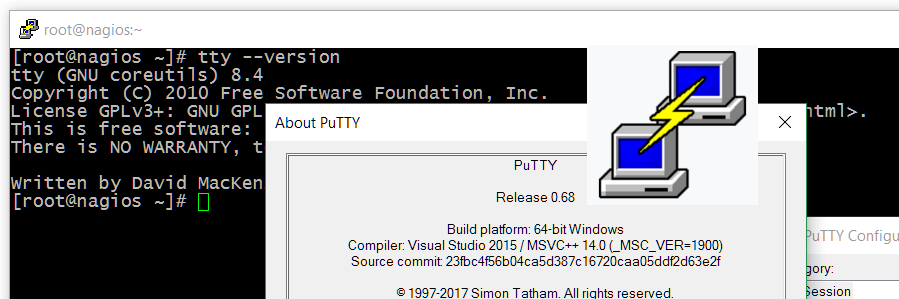
PuTTY is still a popular versatile terminal client and is mainly used as an ssh terminal emulator in Windows, commonly used for connecting from Windows to the Linux shell. If you want to use PuTTY or the clone KiTTY in the command line, or for processing in batch files, you will quickly notice that the help option is not available. If you try putty -h or putty -help also the -? option does not get any help.
PuTTY Command-line Options Help
That’s why I’ve listed a collection of all known putty command-line options help here.
-1 and -2: specify an SSH protocol version
-4 and -6: specify an Internet protocol version
-A and -a: control agent forwarding
-agent and -noagent: control use of Pageant for authentication
-C: enable compression
-hostkey: manually specify an expected host key
-i: specify an SSH private key
-L, -R and -D: set up port forwardings
-l: specify a login name
-load: load a saved session
-loghost: specify a logical host name
-m: read a remote command or script from a file
-N: suppress starting a shell or command
-nc: make a remote network connection in place of a remote shell or command
-P: specify a port number
-pgpfp: display PGP key fingerprints
-proxycmd: specify a local proxy command
-pw: specify a password
-restrict-acl: restrict the Windows process ACL
-sercfg: specify serial port configuration
-sessionlog, -sshlog, -sshrawlog: specify session logging
-t and -T: control pseudo-terminal allocation
-v: increase verbosity
-X and -x: control X11 forwarding
protocols: -ssh, -telnet, -rlogin, -raw -serial
PuTTY free SSH client for Windows
PuTTY is a versatile terminal client for Windows. It is the world’s most popular free SSH client. PuTTY supports SSH, telnet, and raw socket connections with full featured terminal emulation. The PuTTY client supports public key authentication and Kerberos single-sign-on. It also includes command-line SFTP and SCP implementations, but without command-line help.
PuTTY Key Features
- Windows client. Mac and Linux ports exist. No server included.
- Supports both 32-bit and 64-bit Windows. An MSI installer has been available since 2016.
- Supports SSH client, telnet client, SFTP client (command line only), and rlogin client. Both SSH2 and SSH1 protocols are supported. Note that use of SSH1 is not recommended for security reasons. Practically all devices support SSH2 these days.
- Supports public key authentication and Active Directory/Kerberos authentication.
- File transfers only using a separate command-line programs. No integrated file transfer support.
- No scripting support, but can be used together with WinSCP.
PuTTY SSH client alternatives
There many SSH clients that are more modern. A major shortcoming of PuTTY is that it does not have integrated file transfers in the client itself. Instead, file transfers have to be done via the command-line options (without help). This is too complicated for most users. WinSCP is a versatile and known popular file transfer client. PuTTY also does not include an SSH server.
KiTTY as a fork from PuTTY version 0.76
KiTTY is a free and open source GPU accelerated terminal emulator for Linux and macOS that focuses on performance and features. It is written in C and Python programming languages. KiTTY is only designed for the Microsoft Windows platform, with all the features from the original software, and adds many others as decribed in this website. Just like the original, KiTTY doesn’t provide any help for options in the command-line.
 Hit. use this one-liner to quick generate a secure password.