
Category Archives: UNBLOG Tutorials (EN)

THINK UNBLOG Knowledge Network for Tutorials, Howto’s, Workaround, DevOps Code for Professionals. The posts are made on demand contributed by professionals

Forgot MySQL root password, easy reset

Forgot the MySQL server root password?

After forgetting or losing the MySQL root password, there is no need to panic. In this tutorial I will show you how to reset the MySQL root password quickly and easily.
Forgot MySQL root password

Resetting the root password is a simple process. This tutorial shows the simplest method of several for resetting the MySQL root password.

The instructions apply only to the open source database MariaDB, the popular fork of the MySQL database server. Additional shell commands are used that are not available in MySQL.

MySQL Root Password Reset

The following few steps require shell access with a local user account on the system running MariaDB/MySQL, the user must provide sudo rights to execute commands in the terminal shell with elevated privileges.

Stop MySQL server

First stop the MariaDB/MySQL server and terminate the service.

sudo systemctl stop mysqld

Start MySQL server without password

Now start a temporary SQL Server instance as follows.

sudo -u mysql mysqld --skip-grant-tables &

When the MySQL server is started with the --skip-grant-tables option, the grant tables aren’t loaded, so no access control is applied. Users are able to access the MariaDB/MySQL server now without a password.

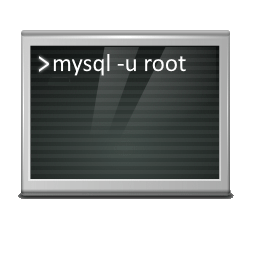
You can now log in to the MariaDB/MySQL server as root in a terminal shell without requiring a password.

mysql -u root

MySQL Root Password Reset

Next run the command to reset the current permissions.

FLUSH PRIVILEGES;

Now reset the MySQL root password with the following command.

ALTER USER 'root'@'localhost' IDENTIFIED BY 'NewPassword';

Replace the placeholder “NewPassword” with the desired password.

Finally, re-read the permissions and exit MySQL.

FLUSH PRIVILEGES;
quit

The MySQL root password has now been changed, now the previously started temporary MySQL server is stopped. This can be achieved with the following shell command.

ps auxw | grep '\-\-skip-grant-tables' | tail -n 1 | awk '{ print $2 }' | sudo xargs kill

Restart MySQL server

Now restart the MariaDB server and log in with the new password.

sudo systemctl start mysqld
mysql -u root -p

The MariaDB/MySQL server is under full control again.

Forgot MySQL root password,
Forgot MySQL root password

sudo -u mysql mysqld --skip-grant-tables & after hit the command sometimes you have to press Enter or hit Ctrl+C

Forgot MySQL root password, easy reset

About MariaDB

MariaDB is a free, open source relational database management system that was created by a fork of MySQL. The project was initiated by MySQL’s former lead developer Michael Widenius, who also developed the storage engine Aria. The structure that MariaDB originally had includes the software layer, which contains the basic functionality of the database, i.e. creating, reading, modifying, deleting data.

Addition

Alternative command to change the MySQL root password.

UPDATE USER set password=PASSWORD('NewPassword') where User='root';
FLUSH PRIVILEGES;
quit

Conclusion

This tutorial shows how to reset the forgotten or losing MySQL server root password. The steps were performed in the GNU bash on an Ubuntu 22.04.3 LTS in WSL and on a virtual Debian 12 (Bookworm) GNU/Linux running MariaDB 10.6.18 database server.

Search Indexing Repair on RDS Server 2019 2022

Windows Server 2019 users find that when searching in RDS, the search indexing on the terminal server do not work while searching in remote desktop and in Outlook.

Symptom

Windows Server 2019 users reported that searching in Remote Desktop on the Terminal Server and searching in Outlook doesn’t showing any search results. The status “Indexing is not running” is displayed in the indexing options.

Search Indexing Repair on RDS Server, Indexing Options
The status “Indexing is not running” is displayed in the indexing options.

After checking the search indexing service “services.msc”, it is shown that Windows Search is running on the RDS Server 2019. When trying to Rebuild the index under Advanced “Rebuild”, the indexing remains unsuccessful even after this action.

Cause

Starting with Windows Server 2019, Microsoft has made changes to the Windows Search service. The per-user search index is now enabled by default. This search indexing also applies to RDS and Windows Server 2022.

That’s why, as an administrator, you won’t see any locations under Indexing Options > Change > Show all locations.

Administrators can disable the setting and restore the older indexing method for Windows Server and RDS by using the EnablePerUserCatalog registry key:

HKEY_LOCAL_MACHINE\SOFTWARE\Microsoft\Windows Search
DWORD EnablePerUserCatalog 0

Solution: Search Indexing for RDS server

The traditional indexing option “per user search indexing” is restored with the following action.

To do this, open a command prompt on the windows server as an administrator and execute the following command to add the registry DRWOD key EnablePerUserCatalog with the value 0.

REG ADD "HKLM\SOFTWARE\Microsoft\Windows Search" /v "EnablePerUserCatalog" /t REG_DWORD /d "0" /f

Now restart the “Windows Search” service or Reboot the Windows Server.

Now all locations are displayed (such as Outlook and/or OneNote). In addition, the number of indexed items should increase significantly.

Search Indexing Repair on RDS Server 2019 2022

Note: In Indexing Options > Advanced, the locations of the index can be specified and Rebuild if necessary.

Windows Search Indexing in Server 2019, 2022 using Multi-Session

Now, the default Windows Search service is able to roam all Windows Search index data on a per-user basis. The most significant change of per-user search indexing is that the Windows Search index is now stored per user in the user profile, under the following path:

C:\Users\%Username%\AppData\Roaming\Microsoft\Search\Data\Applications{UserSID}{UserSID}.edb

On each login, the Windows Search process creates a new instance of the search database for the user based on the existing EDB. If no EDB file exists, a new one is created by the Operating System.

Enable Windows Search Service on RDS Server

Log in to the Windows Server 2019 or 2022 and launch the Server Manager. Click Manage and select Add Roles and Features. Select Role based or feature-based installation option and click Next, walk through until the Features page, select the Windows Search Service checkbox and click Next. On the Confirmation page, click Install.

Now the windows search service just needs to be started, this is done from services.msc, open windows search properties, select startup type Automatic (Delayed Start), then click the Start button.

Windows Search Properties on Windows Server 2019

Install Windows Search Service in PowerShell

Using PowerShell is probably the quickest way to install the Windows Search service on a server. Launch the PowerShell as administrator. Run the following PowerShell command to install the Windows Search service on Windows Server.

Install-WindowsFeature Search-Service

Open Windows Indexing Options

To access the indexing options, enter “indexing” in the search field.

Alternatively, you can press the key combination Windows-Logo+R.
A new “Run” window will then open. Type the command control srchadmin.dll and select OK.

Open Windows Indexing Options

Windows Search Indexing

Indexing is the process of looking at files, email messages, and other content on your PC and RDS Server and cataloging their information, such as the words and metadata in them. When you search your Computer after indexing, it looks at an index of terms to find results faster.

When you first run indexing, it can take up to a couple hours to complete. After that, indexing will run in the background on your PC or RDS Server as you use it, only re-indexing updated data.

Note. if you are considering using single user search roaming or multi-user search roaming, follow this Microsoft article.