PowerShell remoting over SSH Posh-SSH

As Microsoft announced, SSH will be supported by PowerShell Posh-SSH remoting in Windows 10

This is a third-party solution called Posh-SSH. To use SSH remoting in PowerShell, you must first install the Posh-SSH module from the PowerShell Gallery. It is required that Windows 10 is used, or that the Windows Management Framework 5 is installed.

Install-Module Posh-SSH

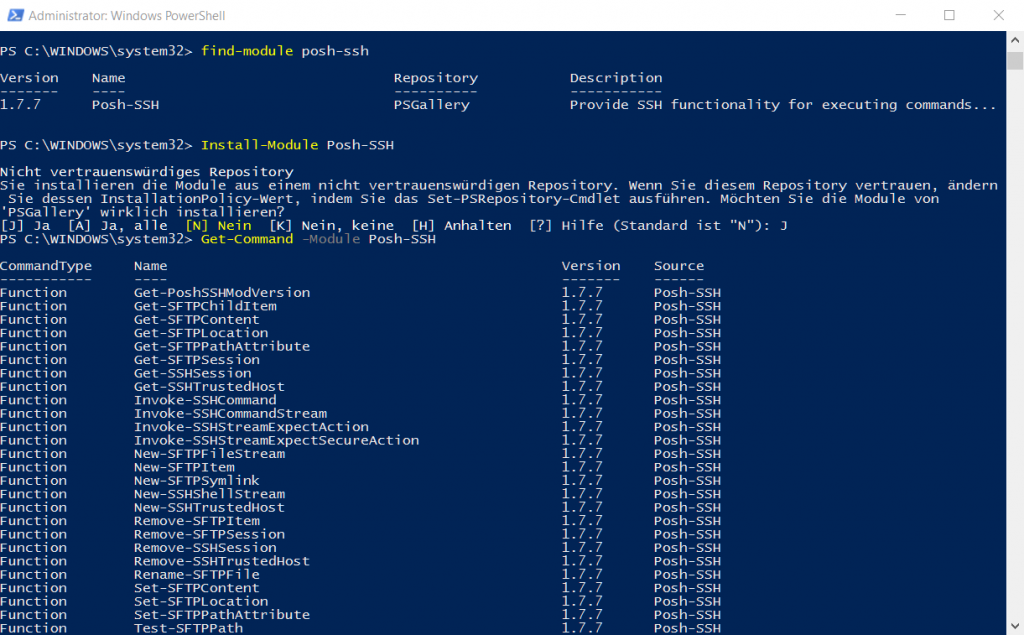
Posh SSH can be installed from PowerShell as follows as Administrator.

Install-Module Posh-SSH
Get-Command -Module Posh-SSH
New-SSHSession -ComputerName "203.0.113.4" -Credential (Get-Credential)
Invoke-SSHCommand -Index 0 -Command "uname -a"

This makes it possible to execute commands on the Linux host and copy files.
PowerShell remoting over SSH - Posh-SSH

Posh-SSH is a PowerShell module for session remoting and automating tasks against the system using the SSH protocol (OpenSSH). The module supports only a subset of the capabilities defined in RFCs https://de.wikipedia.org/wiki/Secure_Shell.

PowerShell remoting over SSH

PowerShell remoting normally uses WinRM for connection negotiation and data transport. SSH is now available for Linux and Windows platforms and allows true multiplatform PowerShell remoting.

WinRM for PowerShell

WinRM provides a robust hosting model for PowerShell remote sessions. SSH-based remoting doesn’t currently support remote endpoint configuration and Just Enough Administration (JEA).

PowerShell SSH Posh-SSH remoting

SSH remoting lets you do basic PowerShell session remoting between Windows and Linux computers. SSH remoting creates a PowerShell host process on the target computer as an SSH subsystem. Eventually we’ll implement a general hosting model, similar to WinRM, to support endpoint configuration and JEA.

PowerShell SSH cmdlets

The New-PSSession, Enter-PSSession, and Invoke-Command cmdlets now have a new parameter set to support this new remoting connection.

To create a remote session, you specify the target computer with the HostName parameter and provide the user name with UserName. When running the cmdlets interactively, you’re prompted for a password. You can also use SSH key authentication using a private key file with the KeyFilePath parameter. Creating keys for SSH authentication varies by platform.

PowerShell 6 or higher, and SSH must be installed on all computers. Install both the SSH client (ssh.exe) and server (sshd.exe) so that you can remote to and from the computers. OpenSSH for Windows is now available in Windows 10 build 1809 and Windows Server 2019. For more information, see Manage Windows with OpenSSH. For Linux, install SSH, including sshd server, that’s appropriate for your platform. You also need to install PowerShell from GitHub to get the SSH remoting feature. The SSH server must be configured to create an SSH subsystem to host a PowerShell process on the remote computer. And, you must enable password or key-based authentication.
VIM Editor on Windows

How to install VIM Editor on Windows

The VIM editor is considered the original rock under Linux and Unix and is the standard editor under POSIX, even Mac OS X gives us the VIM editor, which can be called from the terminal.

VIM Editor Windows

Vim (Vi IMproved) is an evolution of the vi. The free open source program was released in 1991 by Bram Moolenaar. A powerful syntax highlight editor, widely used by developers when working with code and scripts, who works with Regex expressions has a versatile tool with VIM, which is now more advanced editor is available for almost any operating system.

Unix admins who work with Windows do not have to do without the usual editor, here you can also help with VIM for Windows. To install the VIM editor on Windows, the best obtained way is to get from https://www.vim.org/ with Download – PC: MS-DOS and MS-Windows. Who wants to can perform the installation automatically with the Self-installing executable Binary. If you prefer, copy the Runtime files vim-#rt.zip and the Win32 console executable vim-#w32.zip itself into the path C:\Program Files (x86)\vim\vim80.

VIM configuration file vimrc

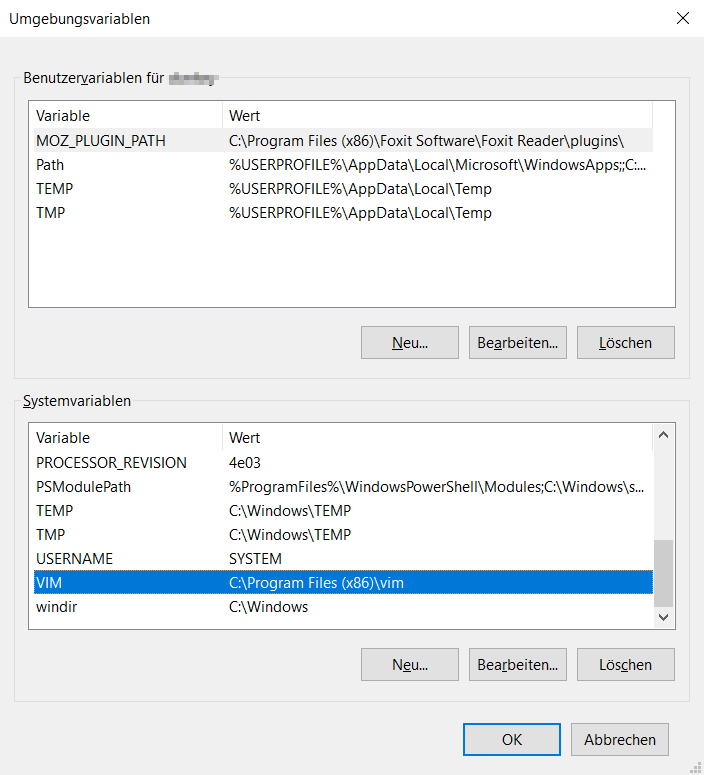
The VIM configuration takes place via environment variables. The entries are inserted with the key Windows+X under System -> Advanced System Settings -> environment variables. Then under System Variables the path is added, here it is C:\Program Files (x86)\vim. Then add the variable VIM, as the value is entered “C:\Program Files (x86)\vim”.

VIM Editor on Windows, VIM system variables
VIM system variables

The configuration file_vimrcmust come to the program folder under C:\Program Files (x86)\vim. This according to the value of the environment variable – VIM. If user setting, the file under the user profile path is at %USERPROFILE%.

With a symlink on VIM, the vi command becomes available. To do this, mklink from an administrator opened command prompt, use the Win + R = cmd key.

mklink %systemroot%\System32\vi.exe "%ProgramFiles(x86)%\vim\vim80\vim.exe"

For example: _vimrc (starting with underscore) must be for all users under C:\Program Files (x86)\vim. If user settings are to apply place _vimrc to %USERPROFILE%.

" Maintainer:Don Matteo <think@unblog.ch>
" Last change:2016 Dec 26
"
" To use it, copy it to
"     for Unix and OS/2:  ~/.vimrc
"      for Amiga:  s:.vimrc
"  for MS-DOS and Win32:  $VIM\_vimrc
"    for OpenVMS:  sys$login:.vimrc
 
" When started as "evim", evim.vim will already have done these settings.
if v:progname =~? "evim"
  finish
endif
 
" Use Vim settings, rather than Vi settings (much better!).
" This must be first, because it changes other options as a side effect.
set nocompatible
 
" allow backspacing over everything in insert mode
set backspace=indent,eol,start
 
" shortmess=aoOtI
set cmdheight=2
set history=50
set ruler
set incsearch
set number
set wildmenu
set showcmd
set hlsearch
set ignorecase
set smartcase
set autoindent
set laststatus=2
set visualbell
set t_vb=
set shell=powershell
set shellcmdflag=-command
syntax on
color industry
 
" For Win32 GUI: remove 't' flag from 'guioptions': no tearoff menu entries
" let &guioptions = substitute(&guioptions, "t", "", "g")
 
" Don't use Ex mode, use Q for formatting
map Q gq
 
" CTRL-U in insert mode deletes a lot.  Use CTRL-G u to first break undo,
" so that you can undo CTRL-U after inserting a line break.
inoremap  u
 
" In many terminal emulators the mouse works just fine, thus enable it.
if has('mouse')
  set mouse=a
endif
 
if has("gui_running")
  " Set a nicer font
  set guifont=Consolas:h11:cDEFAULT
  " Hide the toolbar
  set guioptions-=T
  " GUI is running or is about to start.
  " Maximize gvim window (for an alternative on Windows, see simalt below).
  set lines=38 columns=133
else
  " This is console Vim.
  if exists("+lines")
    set lines=45
  endif
  if exists("+columns")
    set columns=110
  endif
endif
VIM Editor on Windows

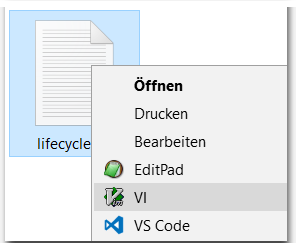
Tip: With a Windows Explorer context menu extension you can create an open with VIM Editor menu entry. This procedure is shown in my Post Explorer Expand Context Menu.

VIM Context Menu