
Category Archives: UNBLOG Tutorials (EN)

THINK UNBLOG Knowledge Network for Tutorials, Howto’s, Workaround, DevOps Code for Professionals. The posts are made on demand contributed by professionals

sort and count uniq lines of text in file

How to find duplicate lines of text in file by the sort and uniq count command? useful to show duplicate text content in files.

sort and count uniq lines of text in file

When editing text or configuration files in the Linux shell, there can often be the requirement that duplicate text content in files occur only once. To check how many times a line was duplicated, especially in files with a larger number of lines. This does not have to be done manually, help provide the use of the filters sort and uniq with count to write sorted concatenation of text lines.

This command counts duplicate lines of text in FILE and sorts the output in the Linux bash.

$ sort FILE | uniq --count

  Replace theFILEplaceholder with the real file name.

Next only duplicate lines of text in FILE should be shown.

$ sort FILE | uniq --count --repeated

Nothing is displayed if there are no duplicate lines of text in the FILE.

using sort and uniq for lines of text

sort write sorted concatenation of all FILE(s) to standard output.

The “sort” command provides various options that can be used to customize the sorting process and file(s) that need to be sorted. If no FILE is specified, the “sort” command will sort the input from the standard input.

Here are some frequently used options with the “sort” command in Linux:

-b, --ignore-leading-blanks
    ignore leading blanks
-h, --human-numeric-sort
    compare human readable numbers (e.g., 2K 1G)
-k, --key=KEYDEF
    sort via a key; KEYDEF gives location and type
-n, --numeric-sort
    compare according to string numerical value
-o, --output=FILE
    write result to FILE instead of standard output
-r, --reverse
    reverse the result of comparisons
-t, --field-separator=SEP
    use SEP instead of non-blank to blank transition
-u, --unique
    with -c, check for strict ordering; without -c, output only the first of an equal run

uniq report or omit repeated lines, is a filter adjacent matching lines from standard input, writing to standard output.

Here are some frequently used options with the “uniq” command in Linux

-c, --count
    prefix lines by the number of occurrences
-d, --repeated
    only print duplicate lines, one for each group
-D  print all duplicate lines
-f, --skip-fields=N
    avoid comparing the first N fields
-i, --ignore-case
    ignore differences in case when comparing

Conclusion

In this post, you will learn how to find duplicate content in a file by using the linux command sort and uniq for sorting and counting. It is useful for finding duplicate text content in files.
Windows Terminal Warning Insert Multiple Lines

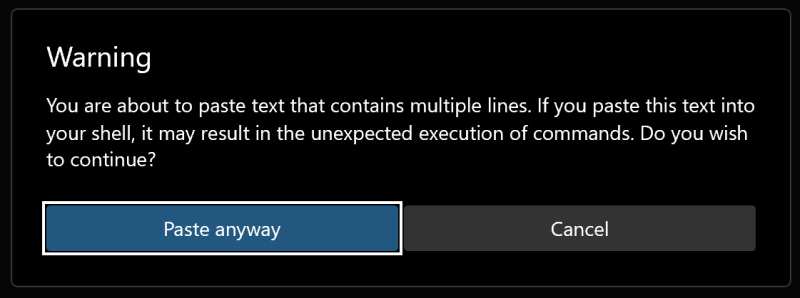
Windows Terminal Warning: You are about to paste text that contains multiple lines

When pasting multiple lines from the clipboard in Windows Terminal, the warning message appears:

  You are about to paste text that contains multiple lines. If you paste this text into your shell, it may result in the unexpected execution of commands. Do you wish to continue?

Windows Terminal Warning, You are about to paste text that contains multible lines.

When working in the shell, the security warning can be useful, but when editing it is more of a handicap, but there is the suitable option “multiLinePasteWarning” which can be set from true to false. This change will disable the windows terminal warning.

"$schema": "https://aka.ms/terminal-profiles-schema",
"alwaysShowTabs": true,
"copyFormatting": "none",
"copyOnSelect": true,
"multiLinePasteWarning": false,
"newTabMenu":

After the Windows Terminal setting with Ctrl+, and open JSON file, under the section $schema the option “multiLinePasteWarning”: false has been inserted, the windows terminal warning for multi-line pasting no longer appears.

What is Windows Terminal

Windows Terminal is a multi-tabbed terminal emulator developed by Microsoft for Windows 10 and later as a replacement for Windows Console. It can run any command-line app in a separate tab. It is preconfigured to run Command Prompt, PowerShell, WSL, SSH, and Azure Cloud Shell Connector. Windows Terminal comes with its own rendering back-end, starting with version 1.11 on Windows 11, command-line apps can run using this newer back-end instead of the old Windows Console.

History

Windows Terminal was announced at Microsoft’s Build 2019 developer conference in May 2019 as a modern alternative to the Windows console. Windows Terminal source code first appeared on GitHub on May 3, 2019. The first stable version of the project (version 1.0) was released on May 19, 2020. Windows Terminal Warning: You are about to paste text that contains multiple lines, is a default setting.

Since Windows 11 22H2 and Windows Terminal 1.15, Windows Terminal replaces Windows Console as the default. It is an open source project and any welcome participation in the community.